Comics & graphic novels
A whole world.One panel at a time.
The first of its kind.
Your story. Your script. Your writing studio.
Shape the story, write every panel, and keep
your characters and worlds in one place.

Free download · Optional Pro
Library
Every story has a home.
From a single issue to an entire series. Give every script a place to grow.
A clear view of your writing.
Browse your series and unsorted scripts by cover, title and issue number. Draft, In Progress and In Review states show where each story stands, with page counts alongside.
Search, sort and change the view. See script and series totals, then start a new script or series right from the Library.
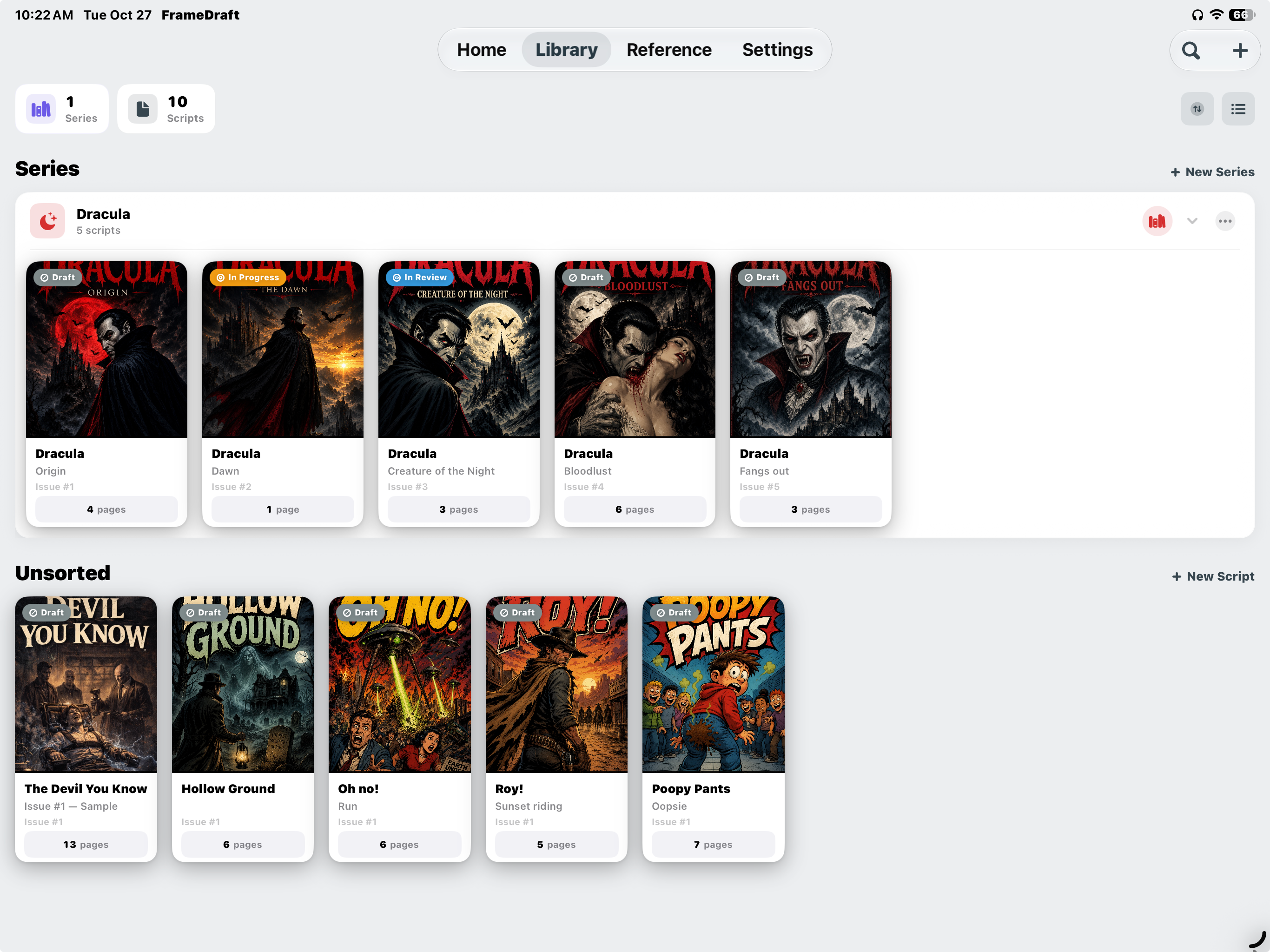
A clear view of your writing.
Browse your series and unsorted scripts by cover, title and issue number. Draft, In Progress and In Review states show where each story stands, with page counts alongside.
Search, sort and change the view. See script and series totals, then start a new script or series right from the Library.
Editors
Your script. Your point of view.
Three ways to work with the same comic: Classic, Modern and Split.
Let the script read like a script.
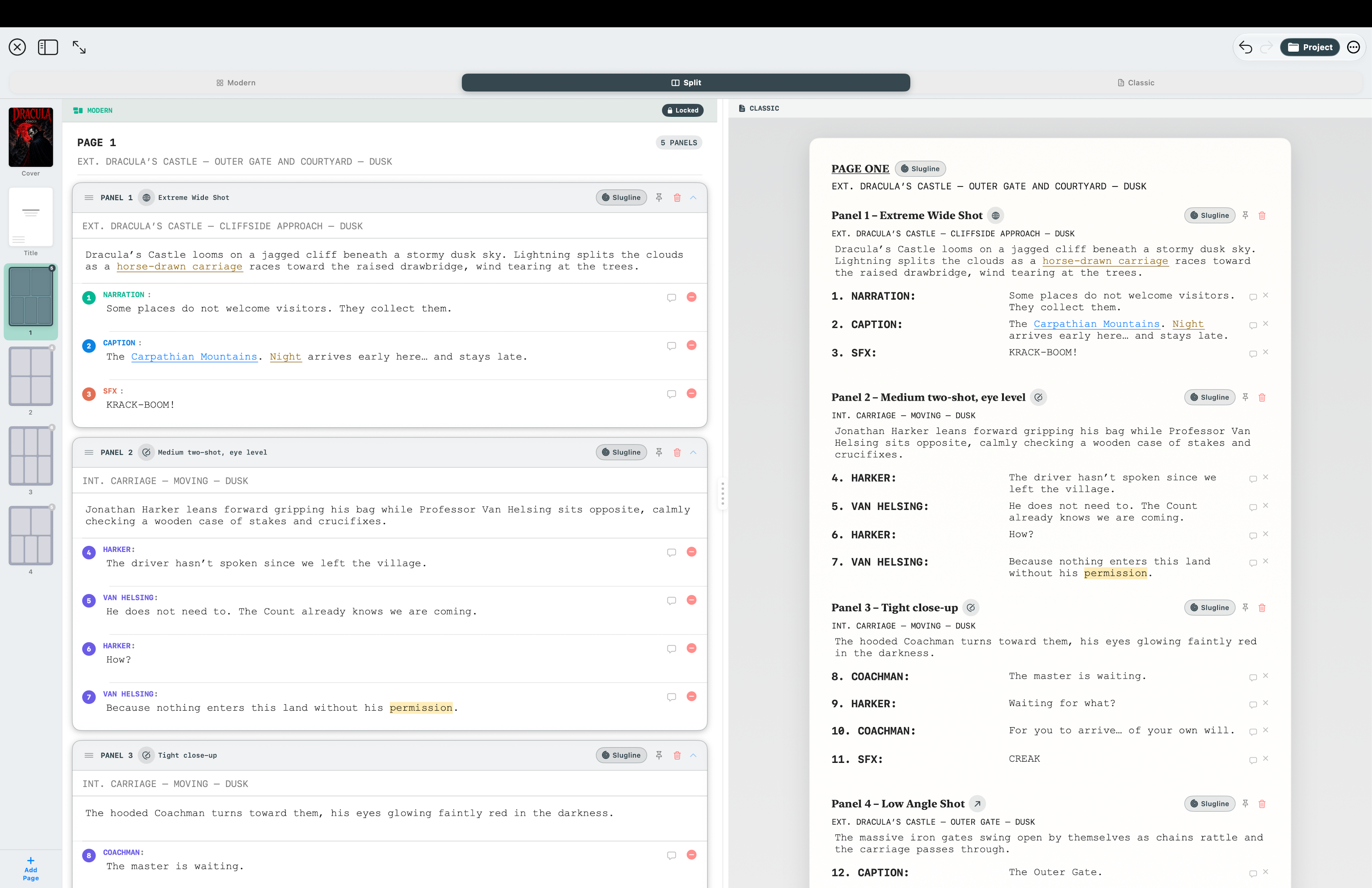
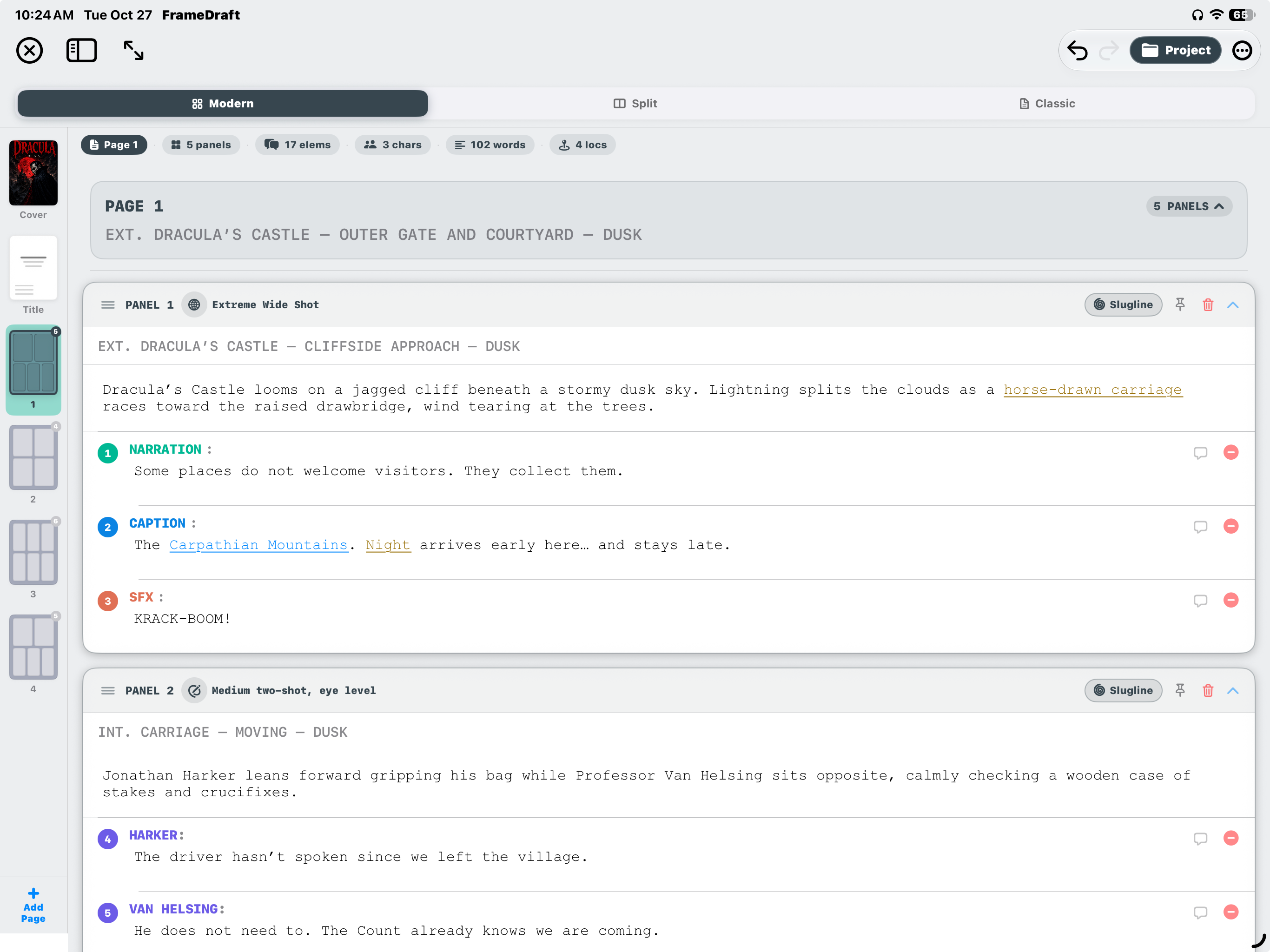
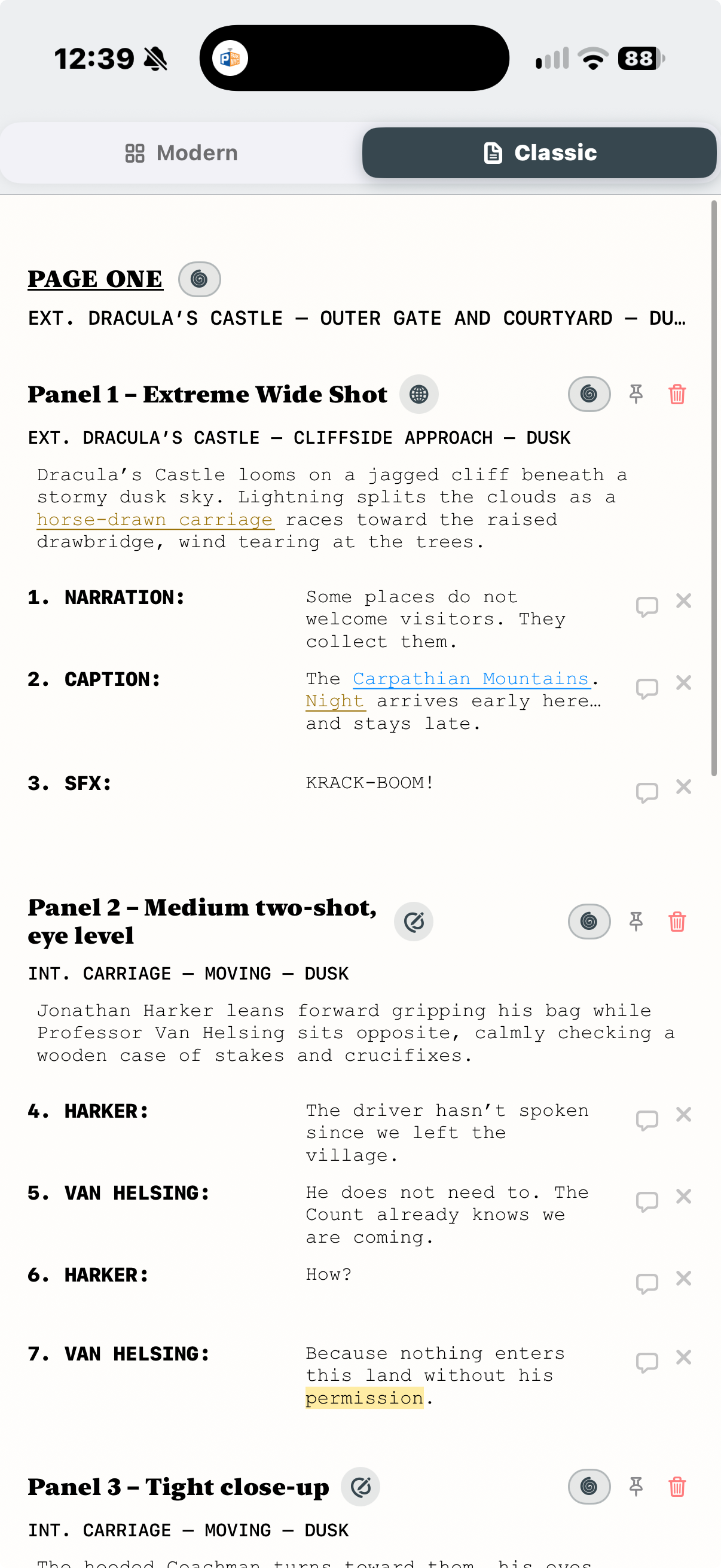
Write on a familiar script page, with panel descriptions and numbered, labeled elements. Keep page thumbnails in the sidebar and script statistics at the top.
1 / 3
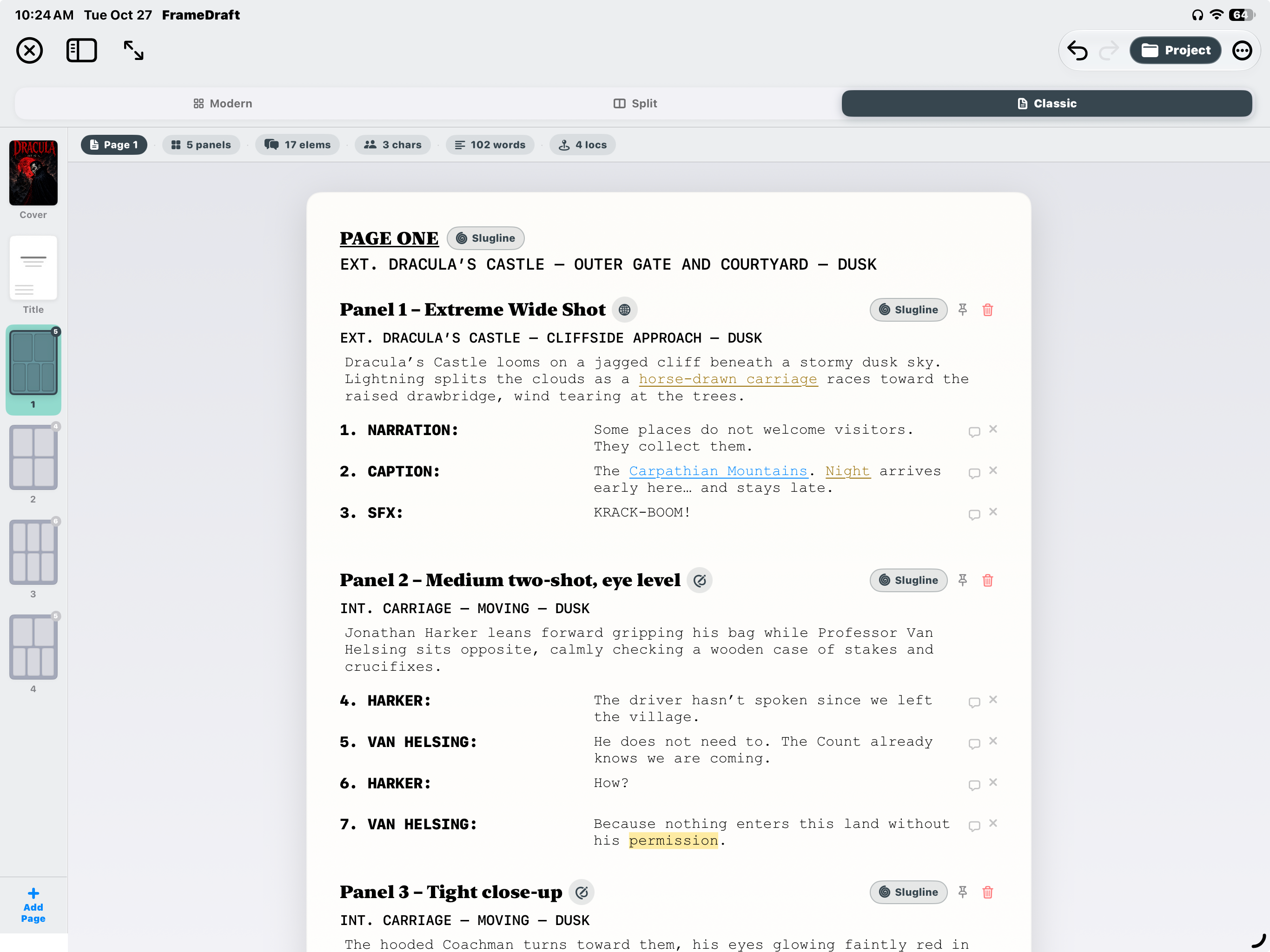
Let the script read like a script.
Write on a familiar script page, with panel descriptions and numbered, labeled elements. Keep page thumbnails in the sidebar and script statistics at the top.
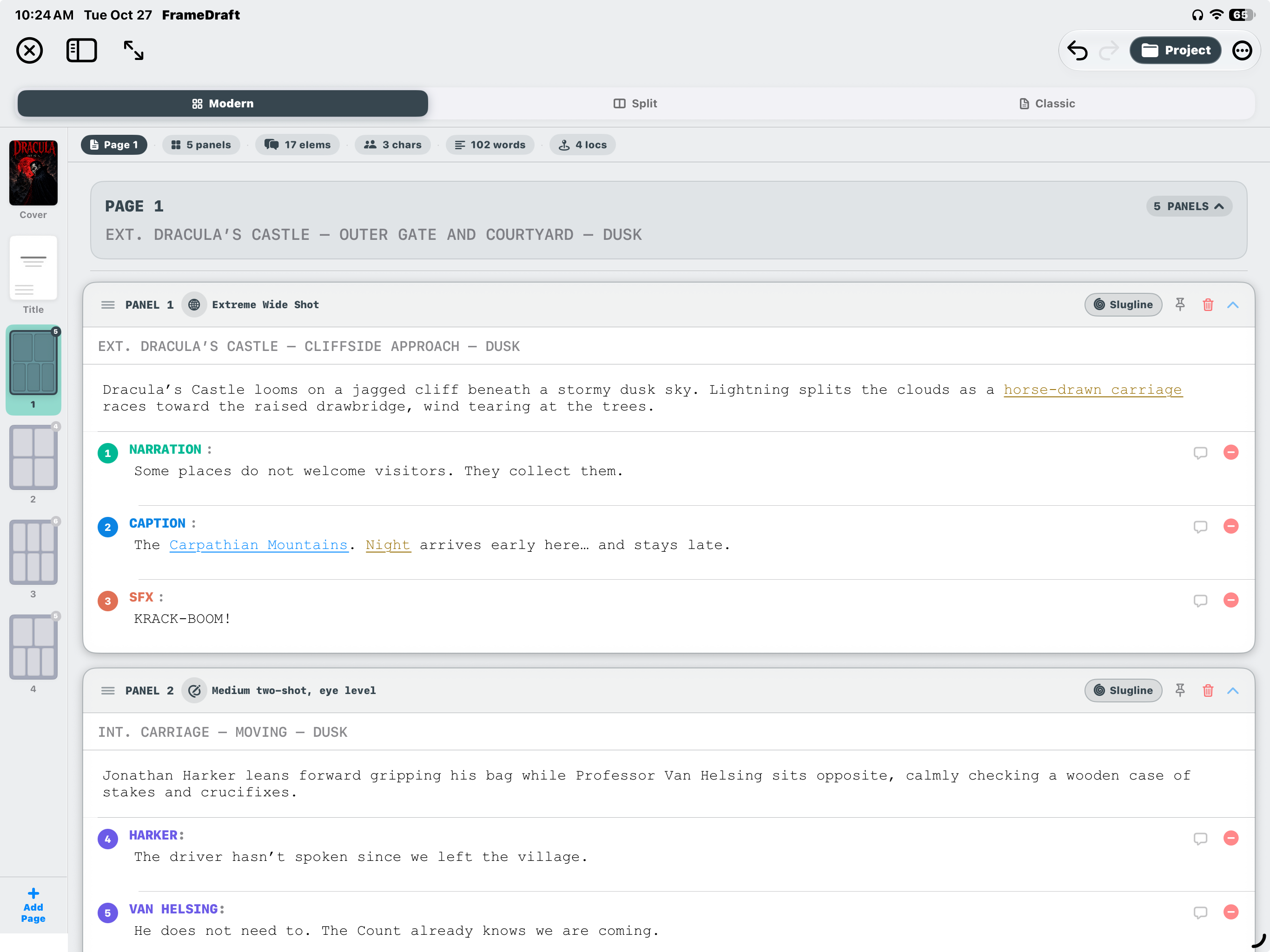
Think in panels. Write in color.
Color-coded cards distinguish dialogue, captions, narration, sound effects and action. Collapse elements, set a panel’s shot and slugline, and move through page thumbnails without losing the big picture.
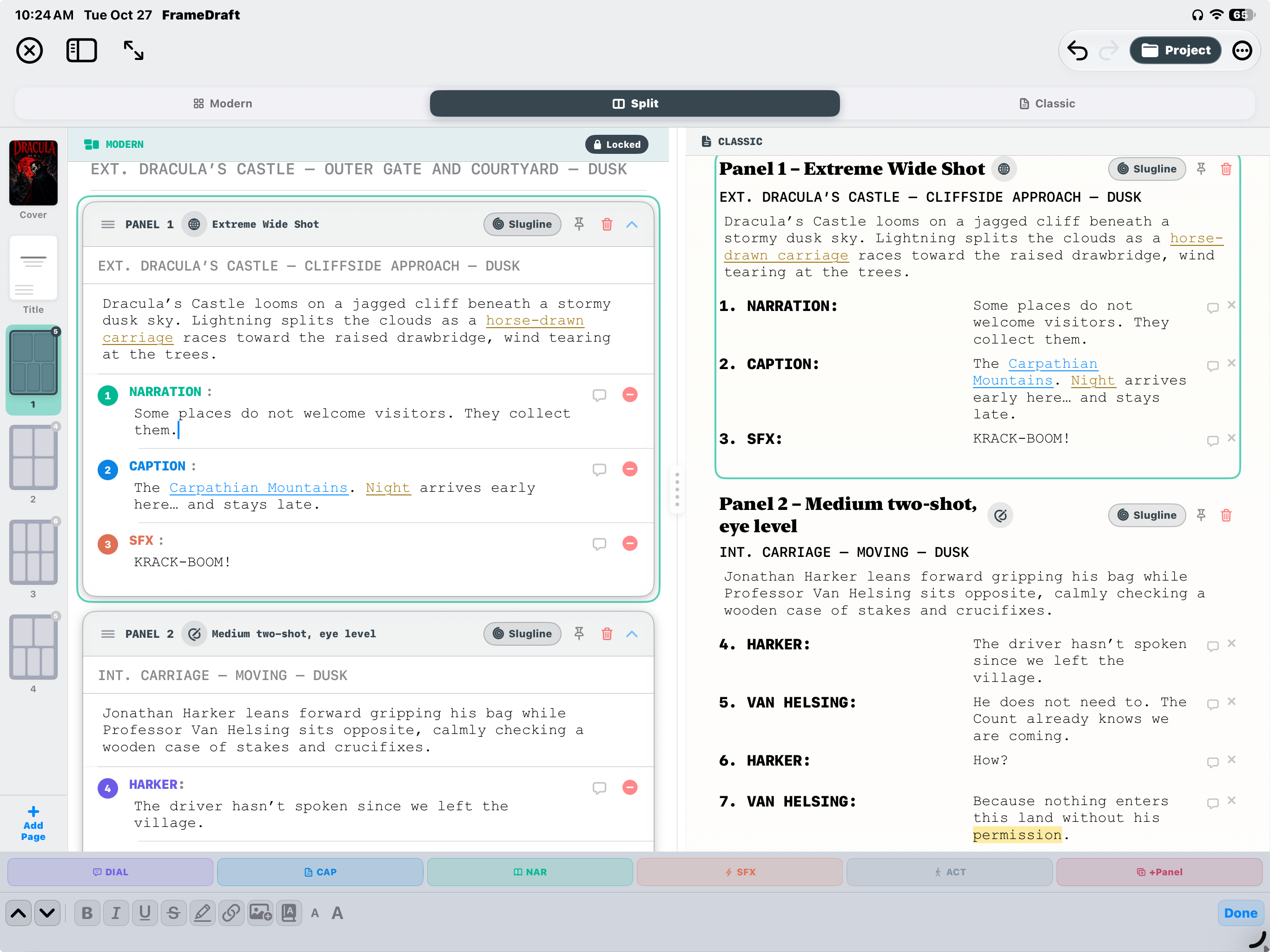
Two views. One panel.
See the same panel in Modern and Classic at once. Work with the structure of cards while keeping the flow of the script beside it.
Element & formatting bars
Small tools.
Big storytelling.
Two bars. Two different jobs. Add the elements that make a comic, then shape the words and references inside them.
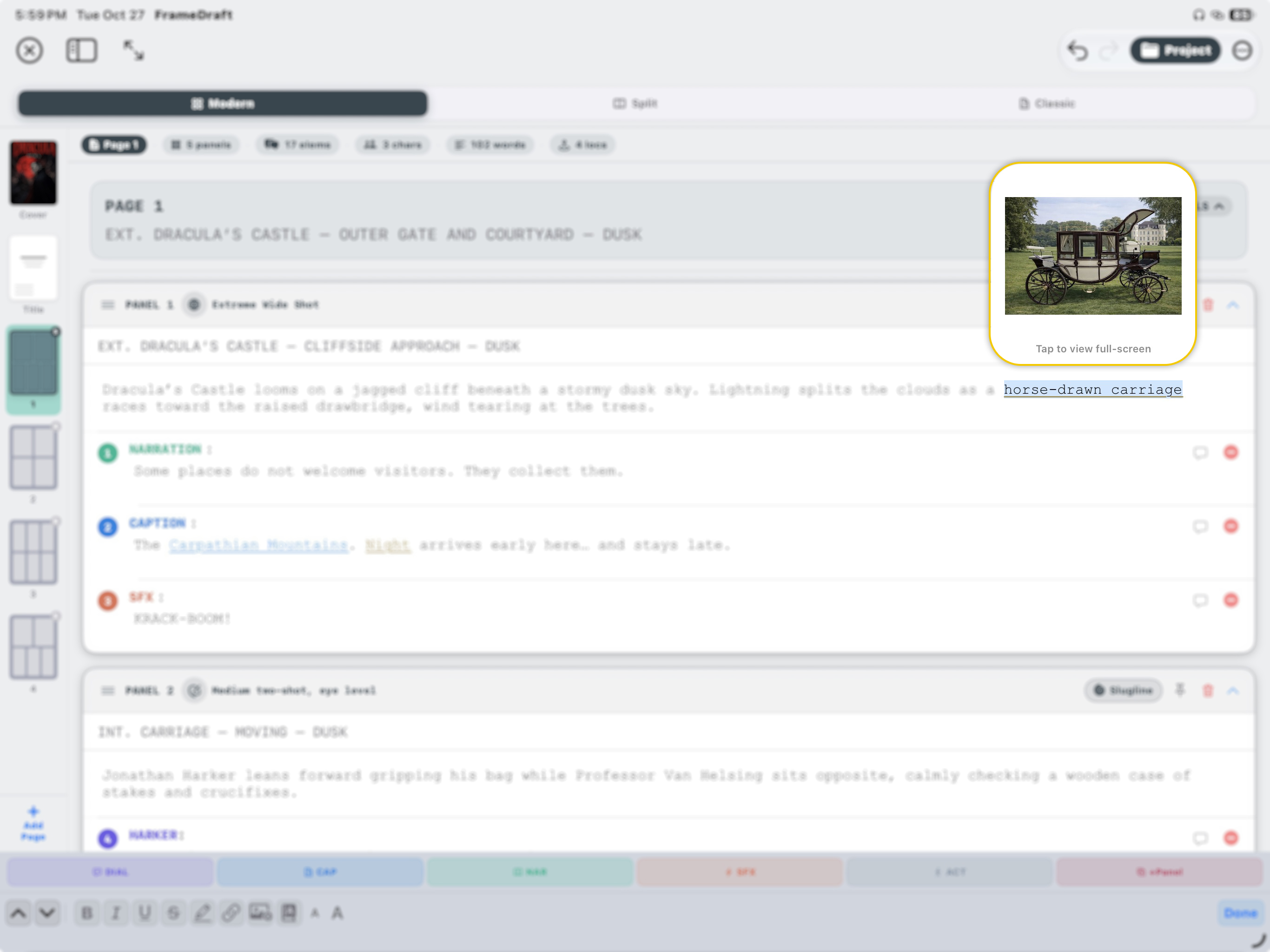
Keep a reference in reach.
Add an image reference to your text and open its preview as you write.
Click to enlarge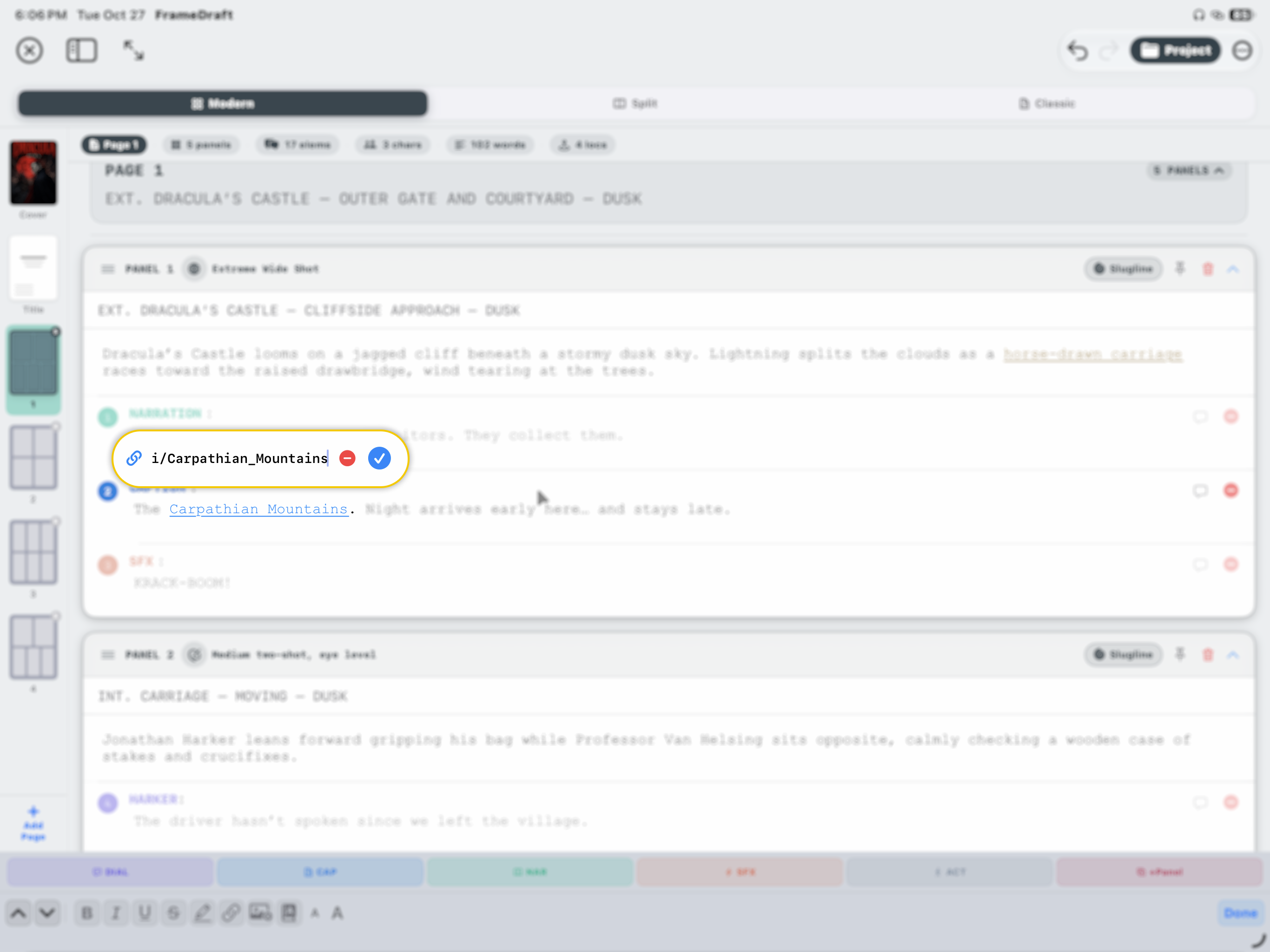
Connect the details.
Turn selected text into a link, then edit or remove it from the script.
Click to enlarge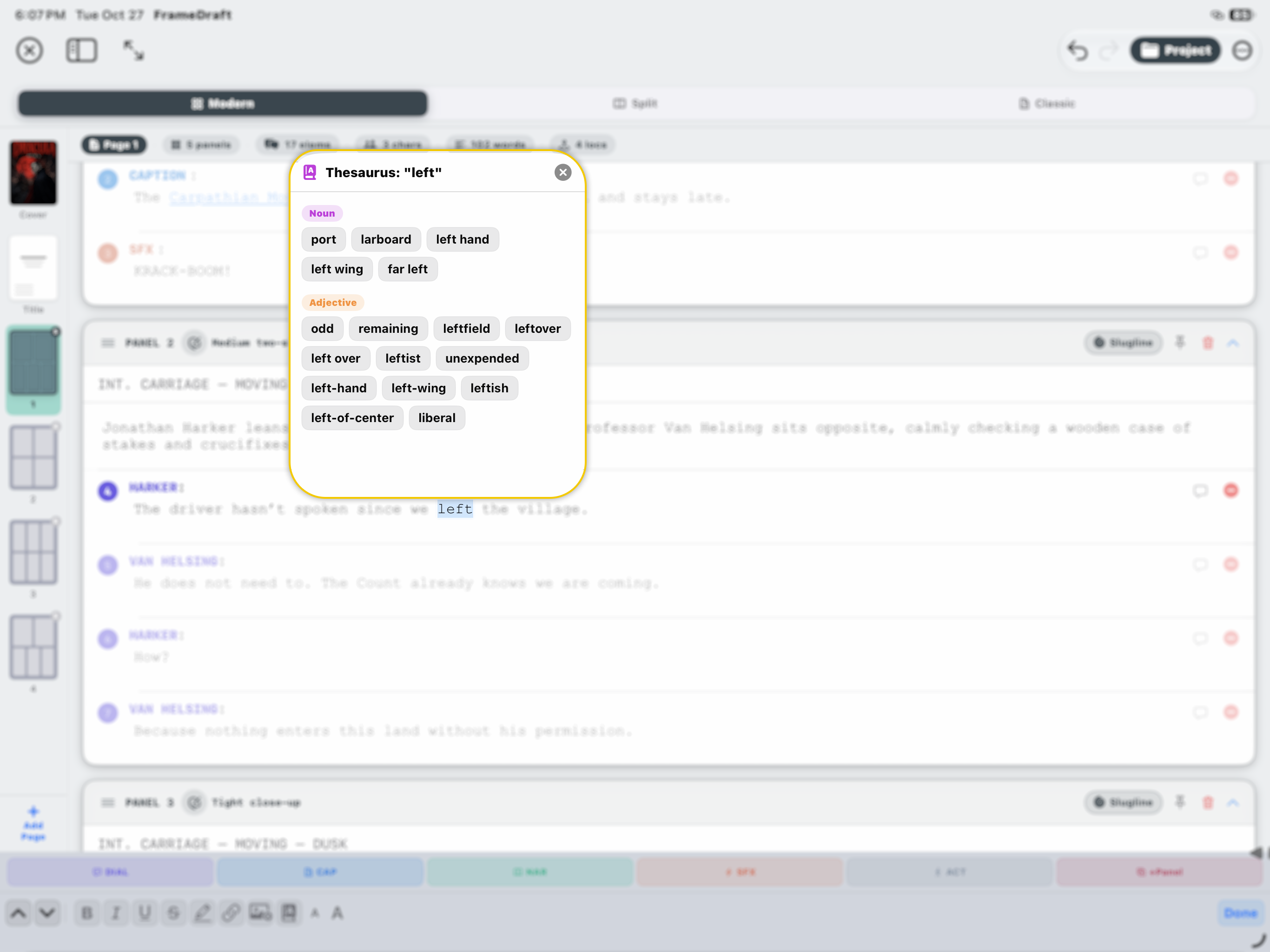
Find just the right word.
Explore word alternatives without leaving your writing workspace.
Click to enlargeStory Outline
See the story before the script.
Shape the purpose of every page, then connect the plan to what you write.
Your pages, at a glance.
Color-coded story beats and page summaries turn your script into an outline. Panel-layout miniatures, tags, word counts and script totals help you see the shape of the whole issue.
1 / 2
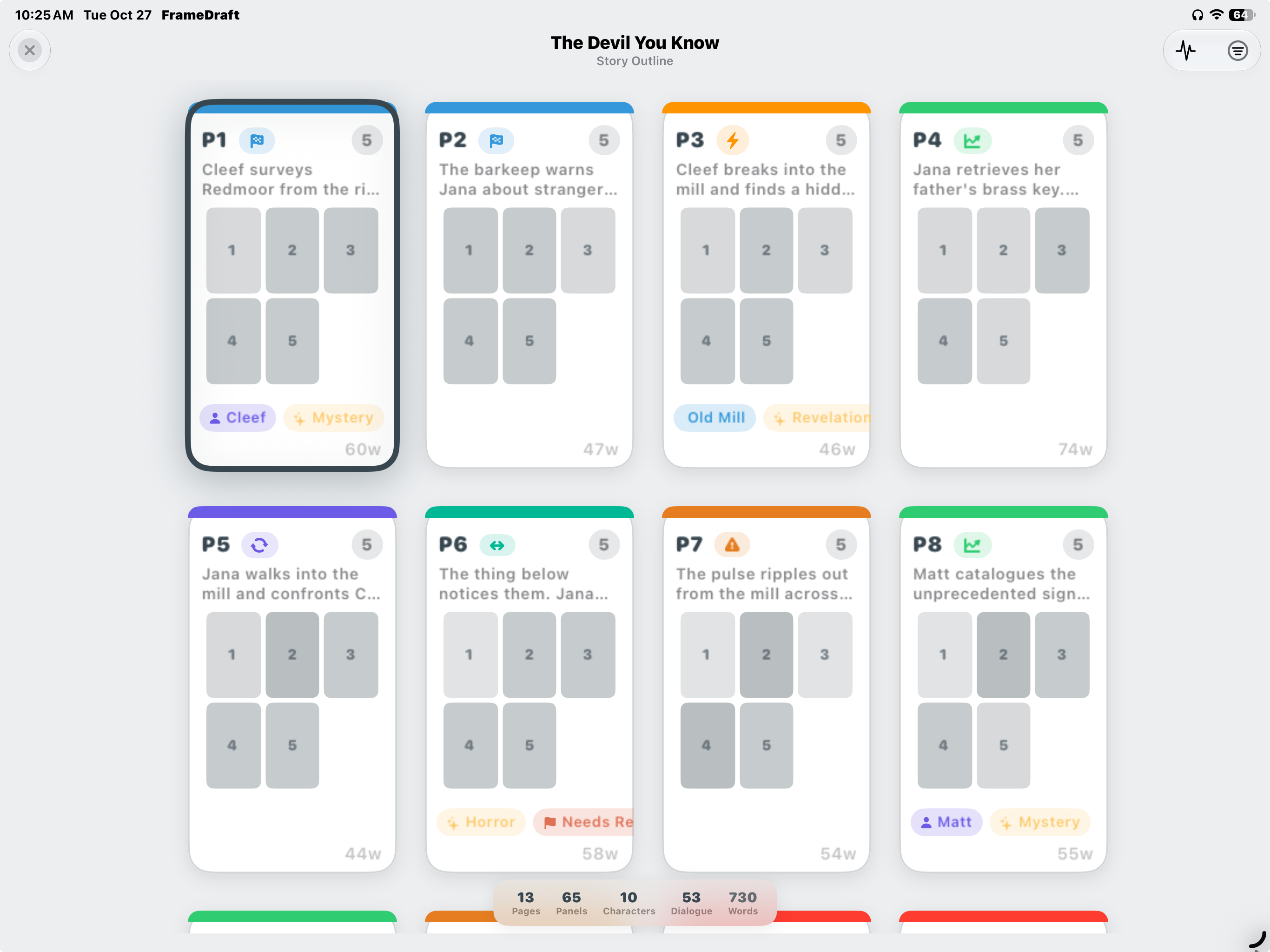
Your pages, at a glance.
Color-coded story beats and page summaries turn your script into an outline. Panel-layout miniatures, tags, word counts and script totals help you see the shape of the whole issue.
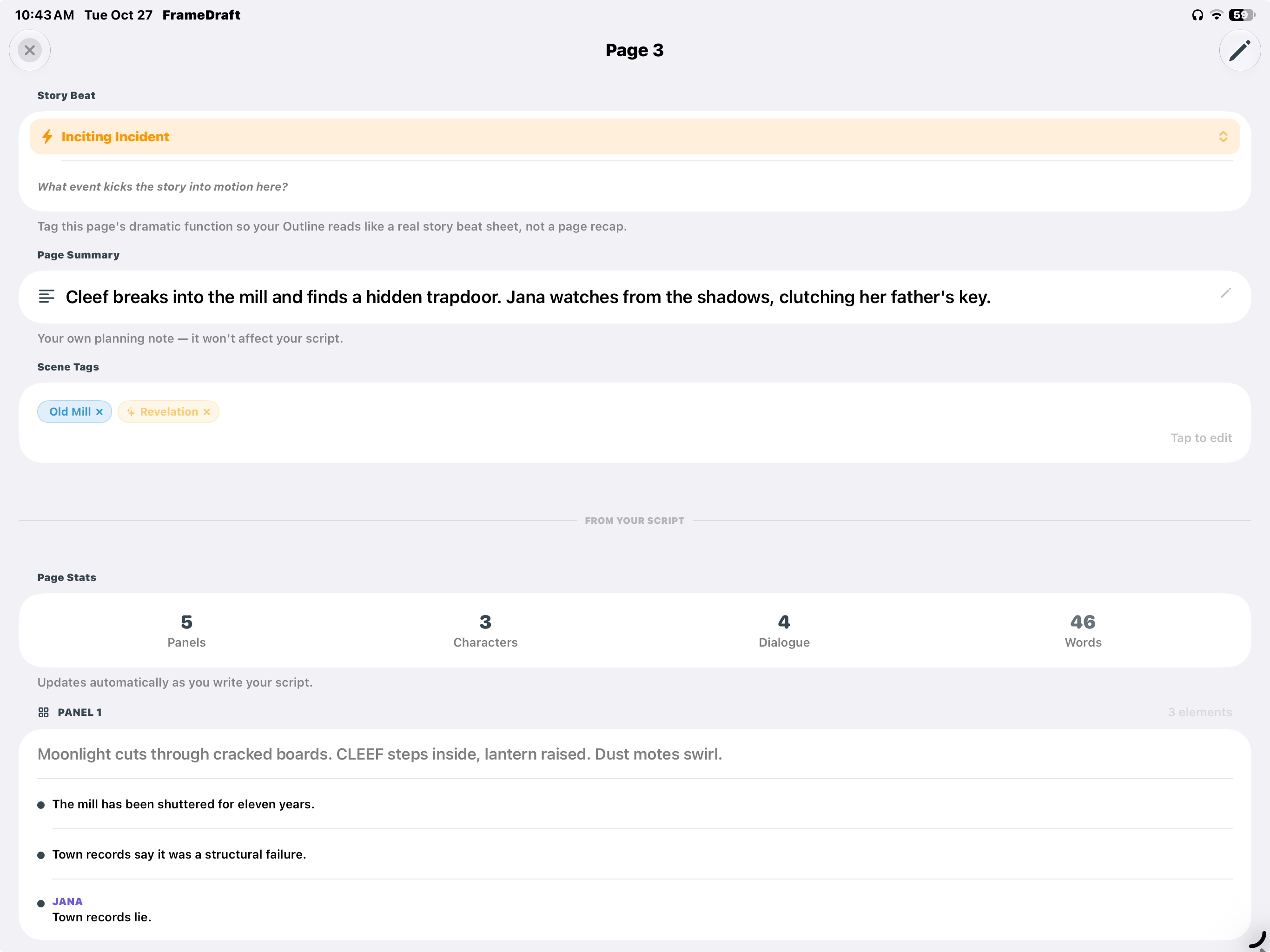
Give every page a dramatic job.
Open a page card to choose its dramatic function, such as Inciting Incident, write a planning summary and add scene tags. The planning summary stays separate from the script.
Panel, character, dialogue and word statistics update from your script. Panel descriptions and dialogue are drawn from what you have already written.
Acts & Groups
Build a story that holds together.
Organize the big turns, the scenes between them and the pages that make them happen.
From acts to individual pages.
Name and color your acts, give them roles like Setup or Confrontation, and read Structure Health percentages and balance guidance. Scene summaries and folders keep the sequence clear.
Create subfolders, assign script pages and expand a scene to inspect its page summaries, panel counts and word counts.
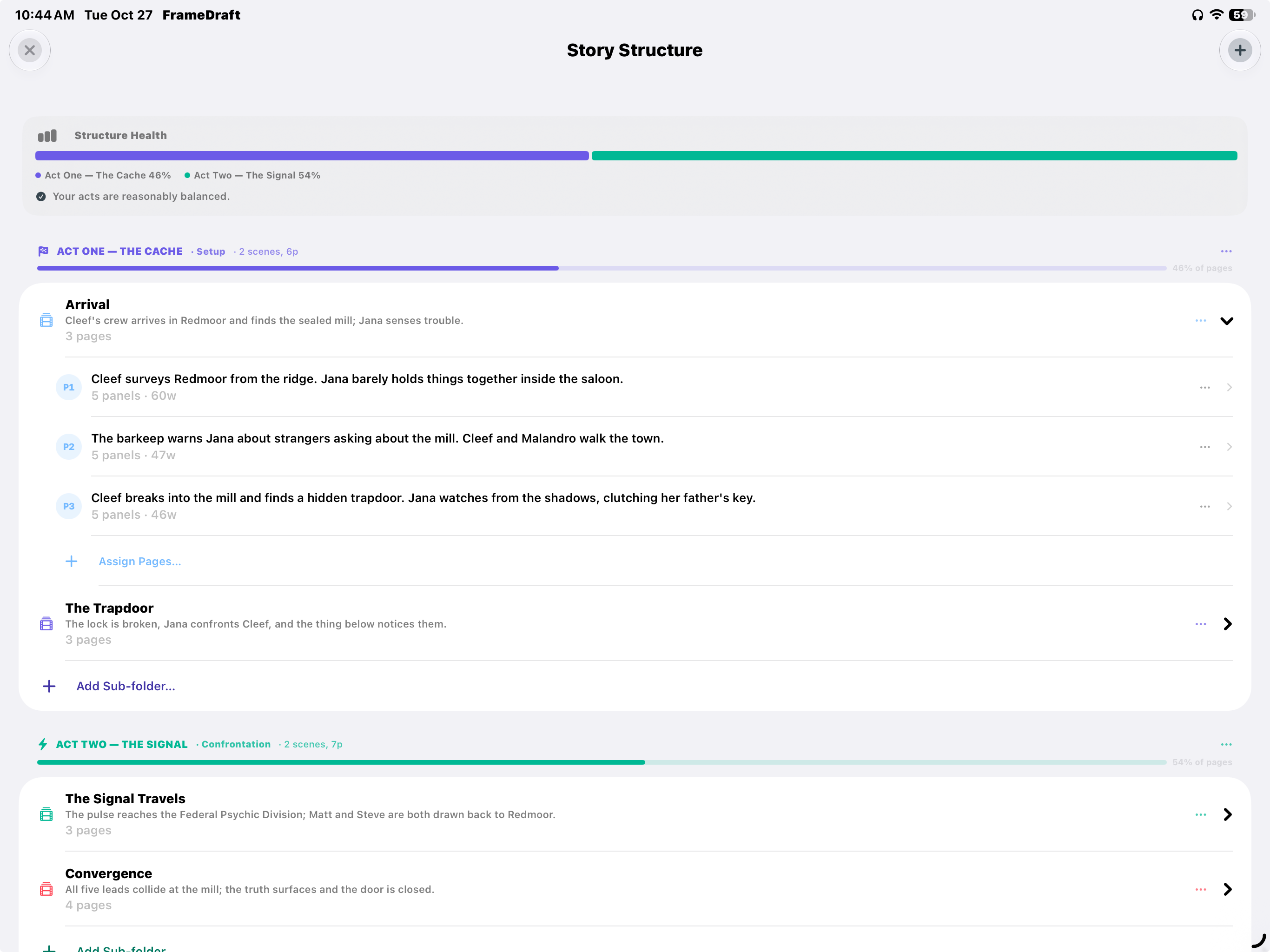
From acts to individual pages.
Name and color your acts, give them roles like Setup or Confrontation, and read Structure Health percentages and balance guidance. Scene summaries and folders keep the sequence clear.
Create subfolders, assign script pages and expand a scene to inspect its page summaries, panel counts and word counts.
Corkboard
Make room for the next idea.
A visual place for story summaries, loose thoughts and all the pieces you are still arranging.
Pull back. See the connections.
Colored cards hold your page summaries and links to the script. Browse the act-and-scene folder hierarchy, search the board and adjust the zoom to find the right perspective.
1 / 2
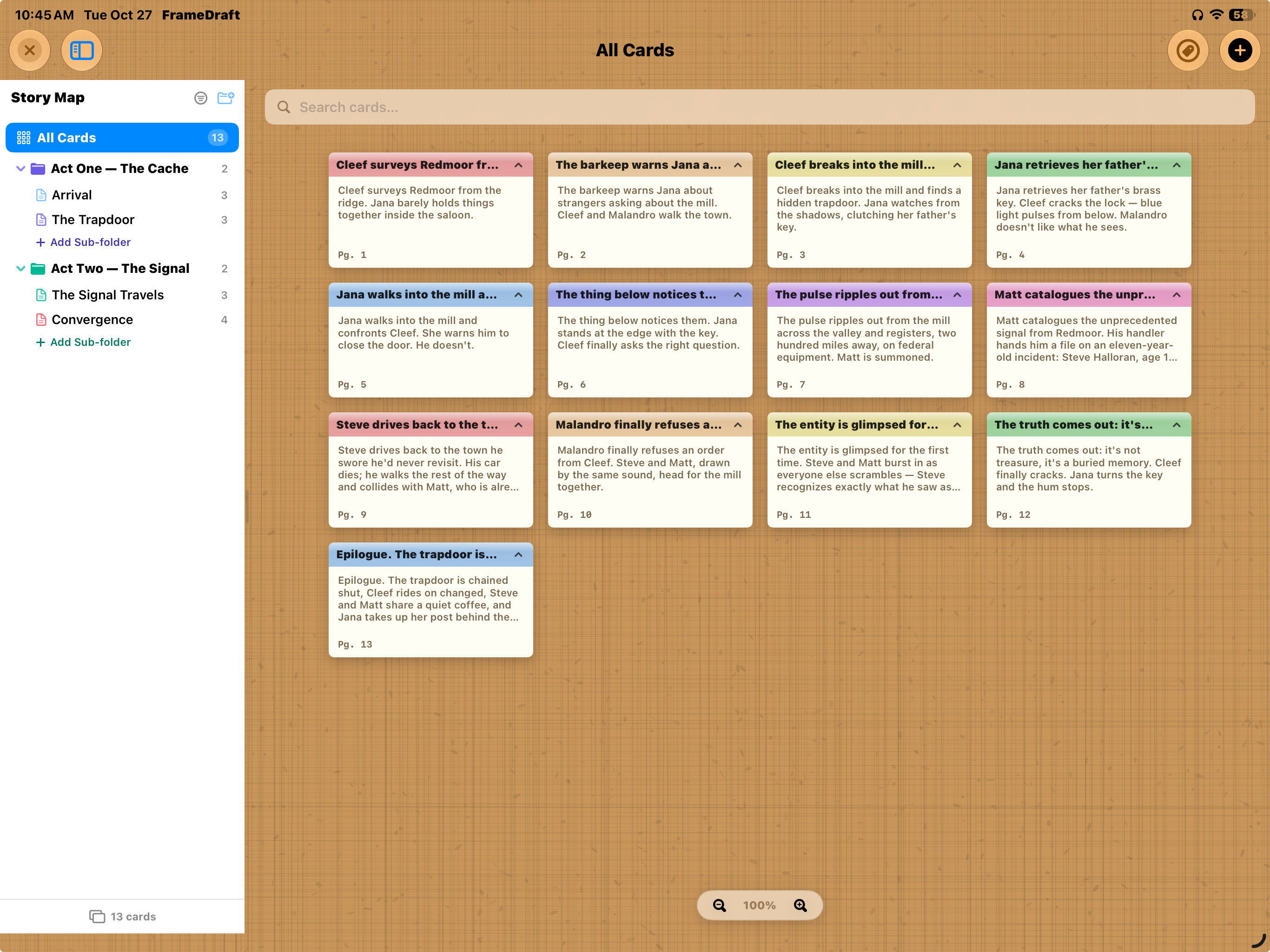
Pull back. See the connections.
Colored cards hold your page summaries and links to the script. Browse the act-and-scene folder hierarchy, search the board and adjust the zoom to find the right perspective.
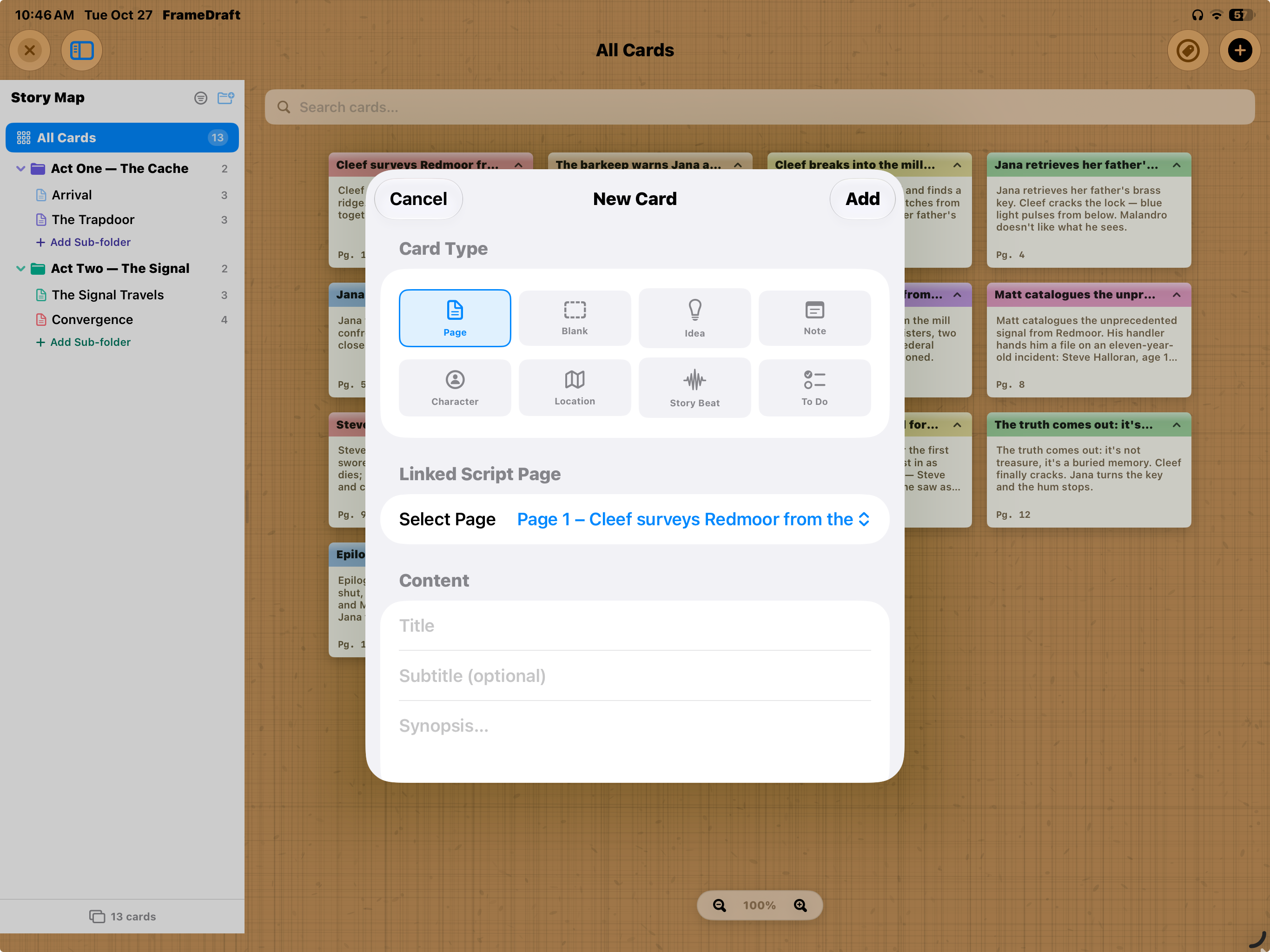
Not every thought starts as a page.
Choose Page, Blank, Idea, Note, Character, Location, Story Beat or To Do. Connect a card to a script page with the Linked Script Page selector.
Add a title, an optional subtitle and a synopsis. Keep the idea on the board until you are ready to write it into the story.
Characters
Know who is driving your story.
Keep the cast recognizable, consistent and ready for their next scene.
Put a face to every name.
Browse character portraits with names, full names, affiliations and roles. Search the cast, switch views and keep character and group totals in sight.
1 / 2
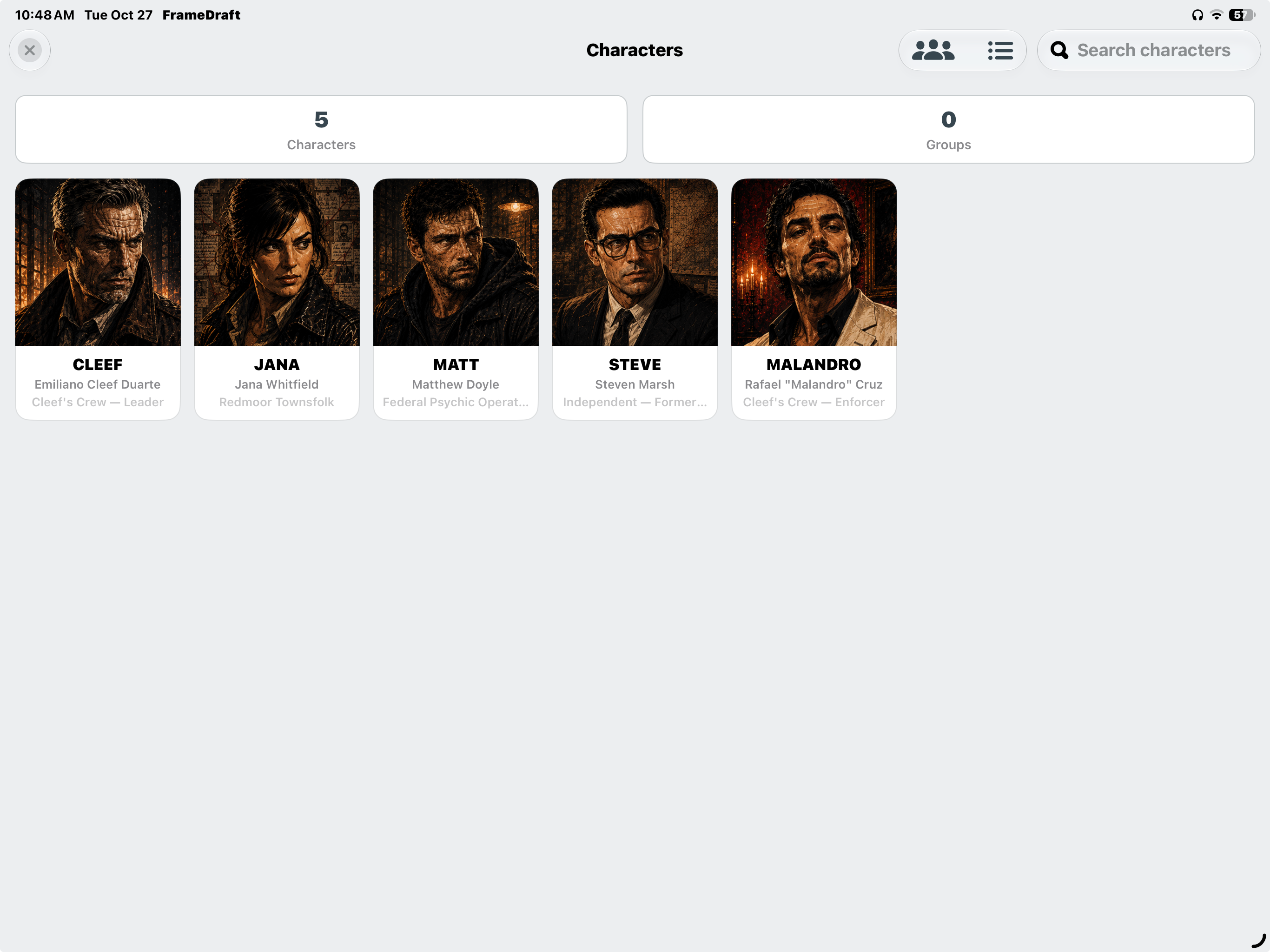
Put a face to every name.
Browse character portraits with names, full names, affiliations and roles. Search the cast, switch views and keep character and group totals in sight.
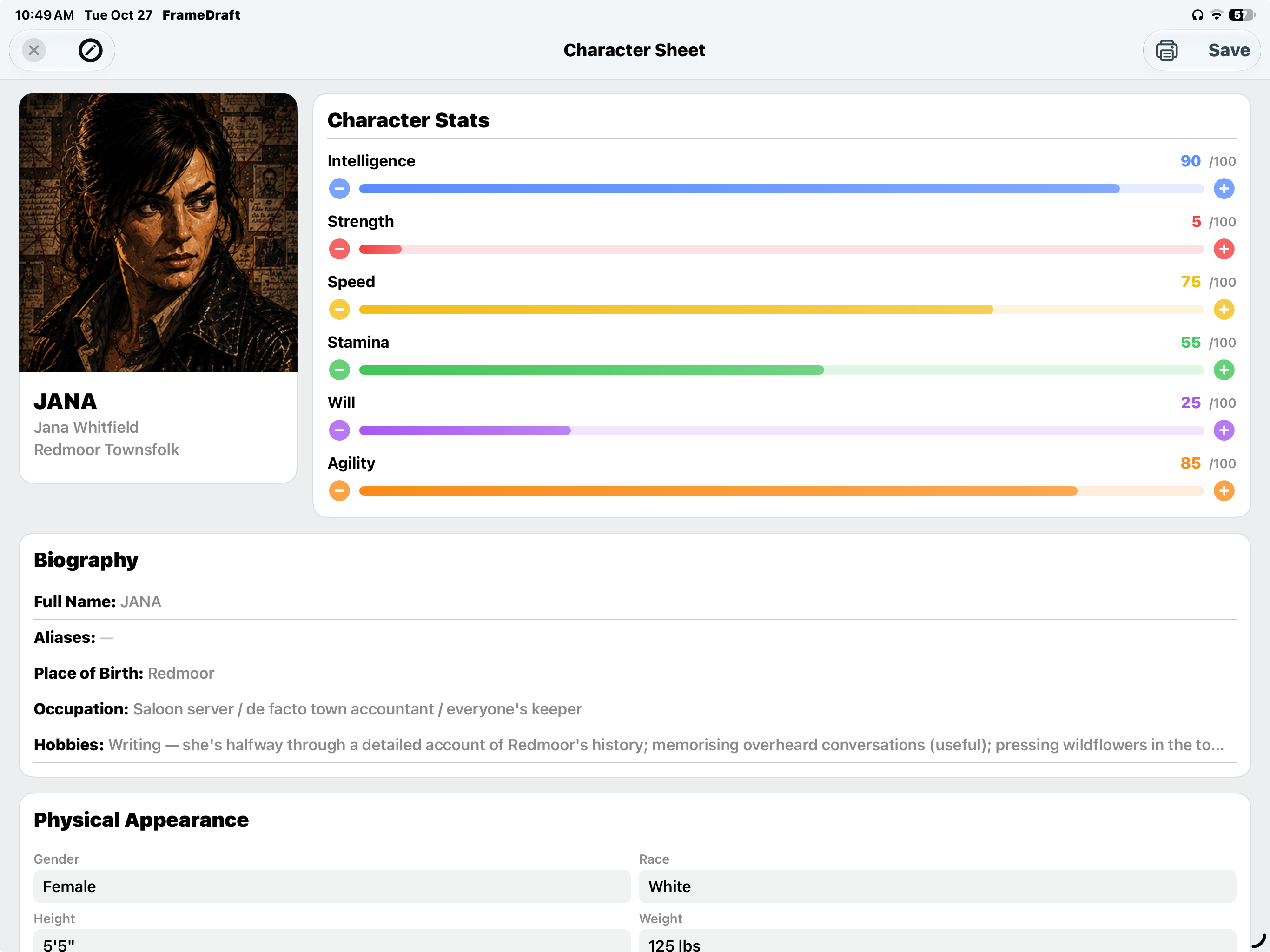
Go beyond the name on the page.
Build a character sheet with a portrait, biography and physical appearance. Adjust Intelligence, Strength, Speed, Stamina, Will and Agility on 0–100 scales.
Edit, save or print the sheet. Keep this detailed view of your character alongside the writing.
Project Notes
A thought now. A better draft later.
Notes you leave in the editors come together here, with their script context intact.
Remember exactly what you meant.
An element note carries the quoted text and its page, panel and element context—even the dialogue number. See dates and Open or Resolved counts, then navigate back to the script.
1 / 2
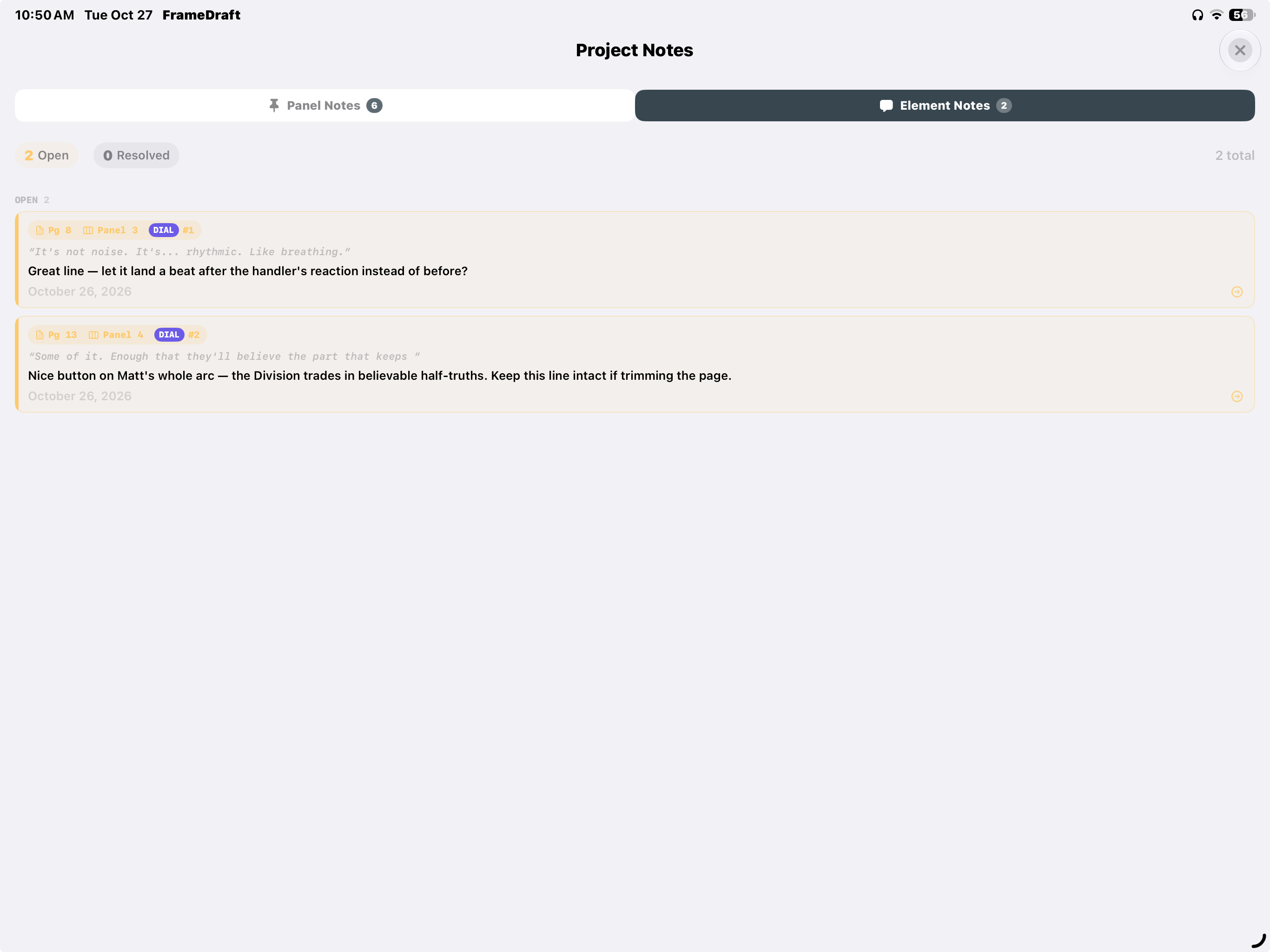
Remember exactly what you meant.
An element note carries the quoted text and its page, panel and element context—even the dialogue number. See dates and Open or Resolved counts, then navigate back to the script.
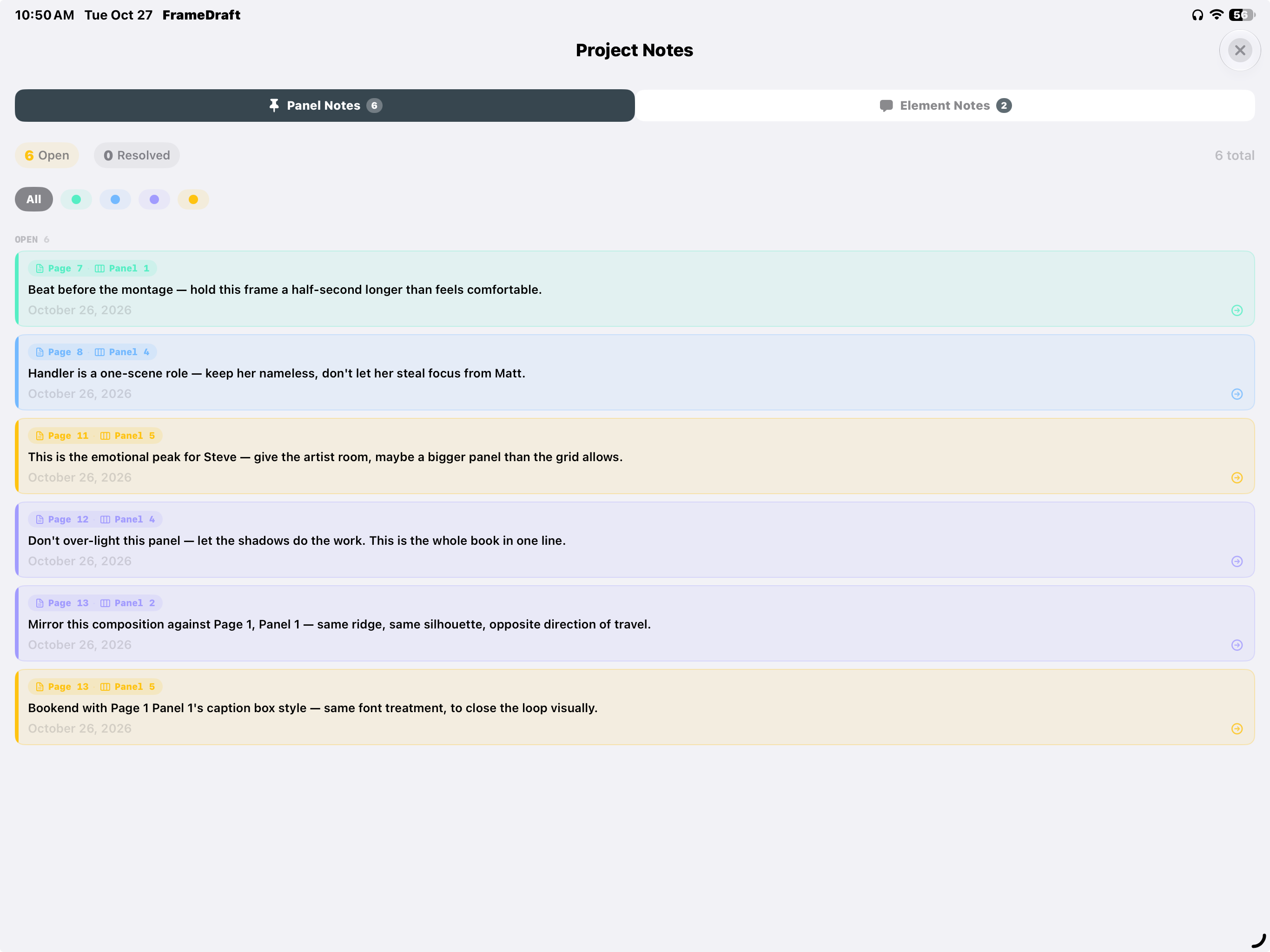
Keep the revision in context.
Color-code panel notes and use color filters to find the ones you need. Track Open and Resolved totals, review dates and return to the relevant panel.
World Bible
A whole world. Kept together.
Give the details behind your story a place of their own.
Keep your universe within reach.
Organize Characters, Locations, Factions and Lore & History in the Script World Bible. Filter by category, search tags and descriptions, add and manage entries, and see character dialogue-line counts.
Writing more than one issue? Use the Series World Bible for the recurring details of your shared universe across scripts and issues.
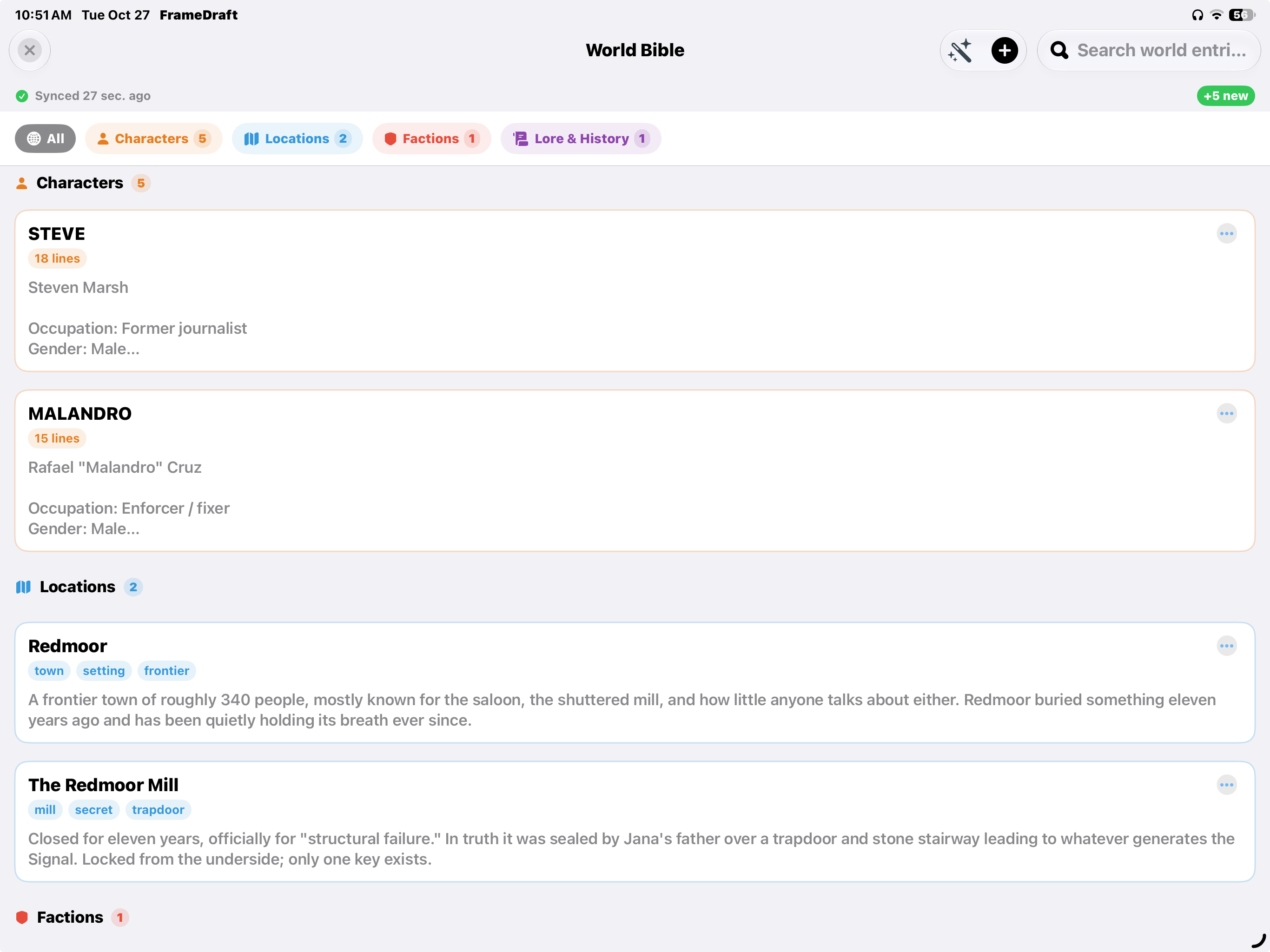
Keep your universe within reach.
Organize Characters, Locations, Factions and Lore & History in the Script World Bible. Filter by category, search tags and descriptions, add and manage entries, and see character dialogue-line counts.
Writing more than one issue? Use the Series World Bible for the recurring details of your shared universe across scripts and issues.
Focus Modes
Just you and the next panel.
Five appearances. One active panel in focus, with the surrounding content dimmed.
A darker space for the story.
Emphasize the active panel against a black background. Adjust brightness, make text smaller or larger, and use page navigation with the current page in view.
1 / 5
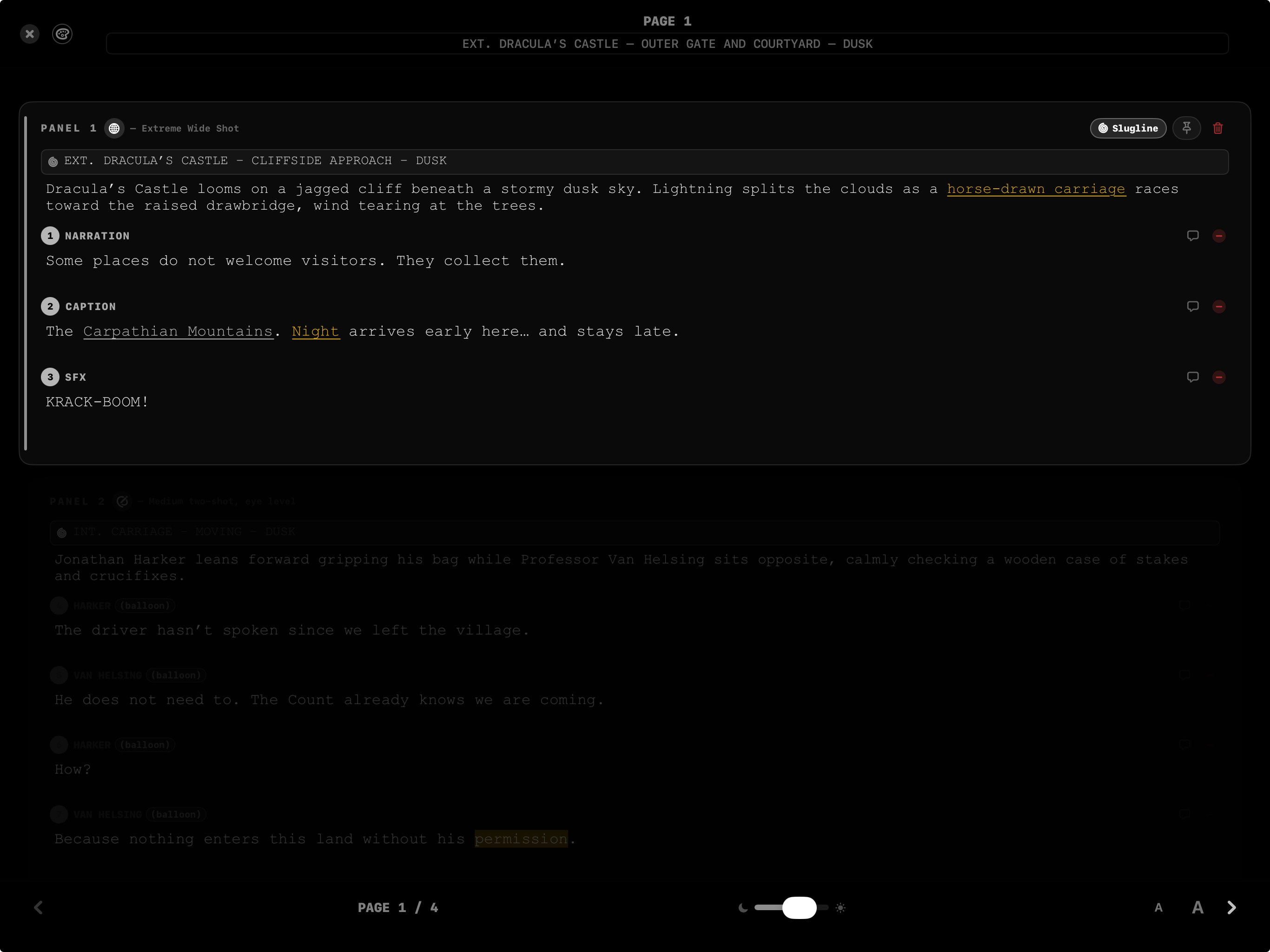
A darker space for the story.
Emphasize the active panel against a black background. Adjust brightness, make text smaller or larger, and use page navigation with the current page in view.
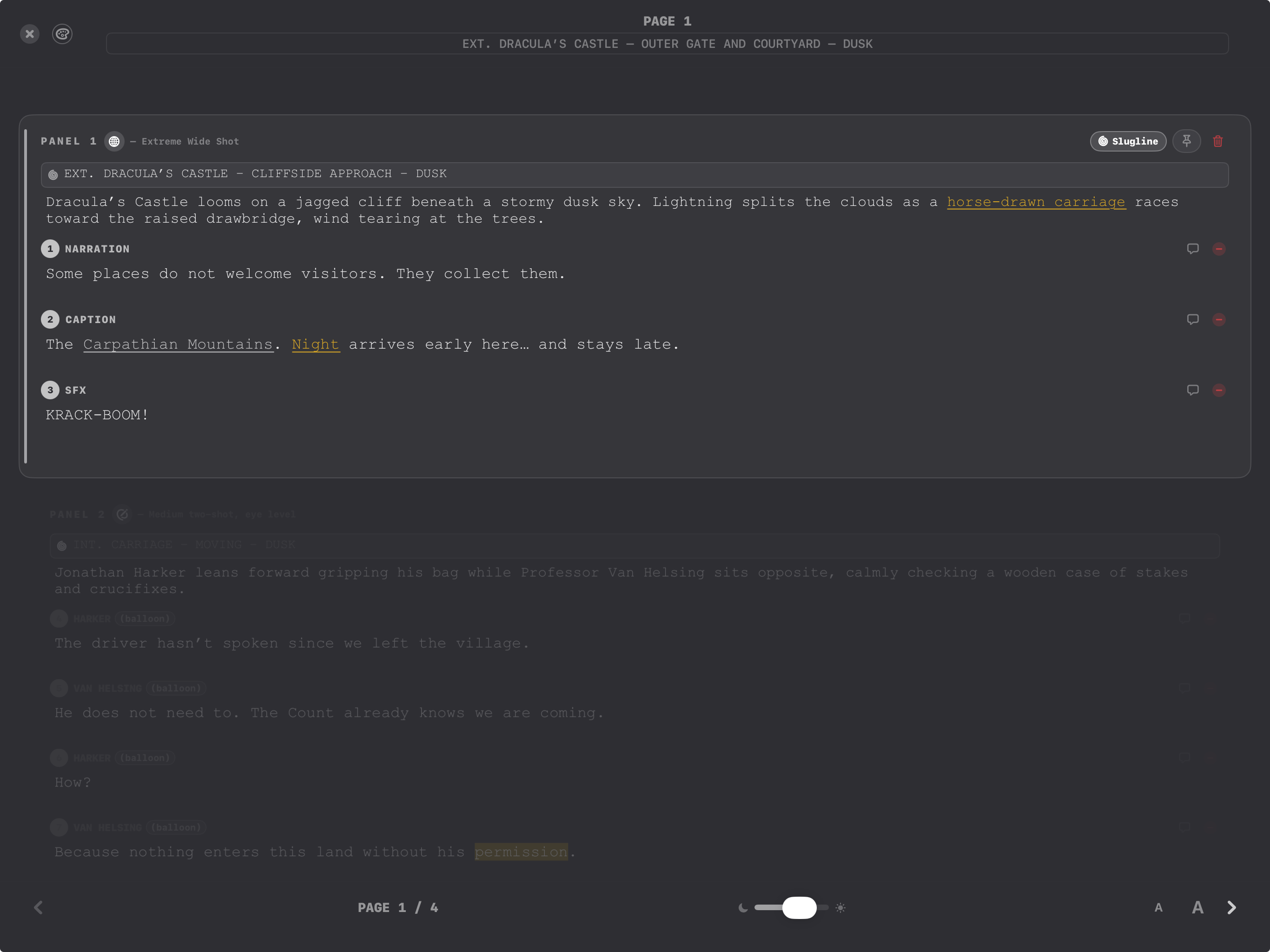
Settle into charcoal.
Keep the active panel prominent in a charcoal appearance. Brightness and text-size controls let you adjust the view as you move from page to page.
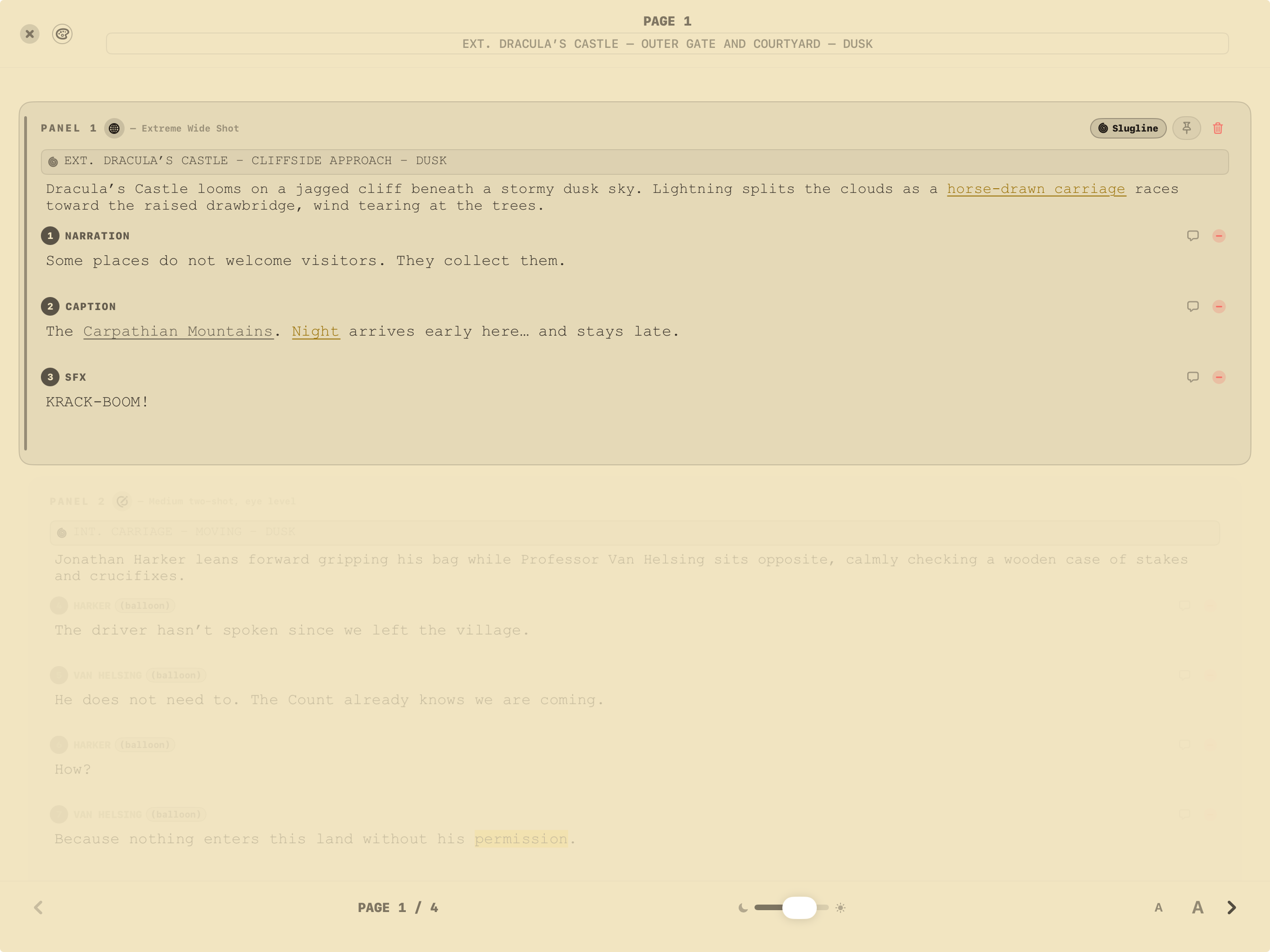
A softer-colored canvas.
Use the light sepia appearance with surrounding content dimmed. Tune brightness and text size, then keep writing one panel at a time.
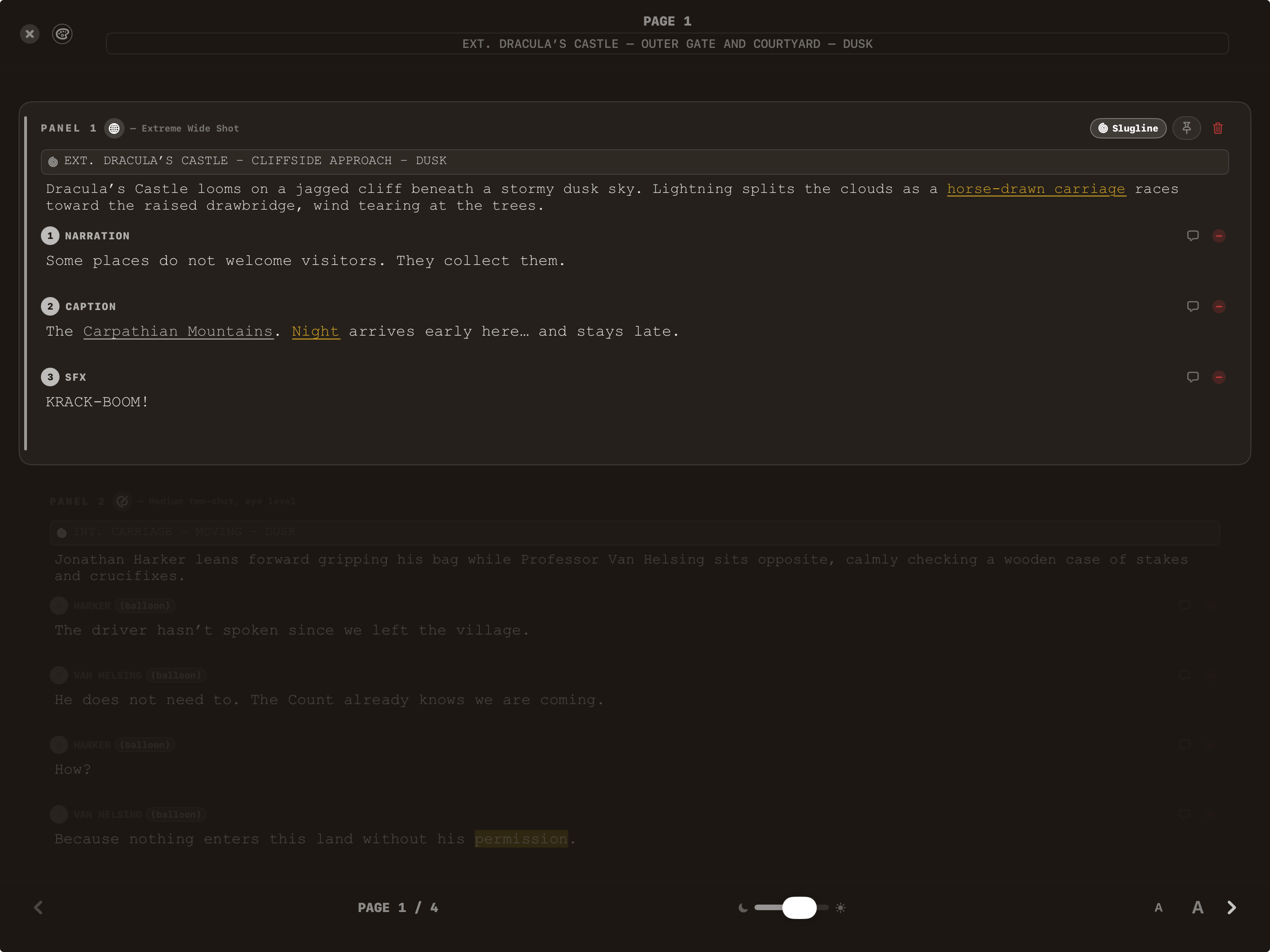
A deep brown backdrop.
The dark brown appearance keeps the active panel in emphasis. Page navigation, brightness and text-size controls remain close at hand.
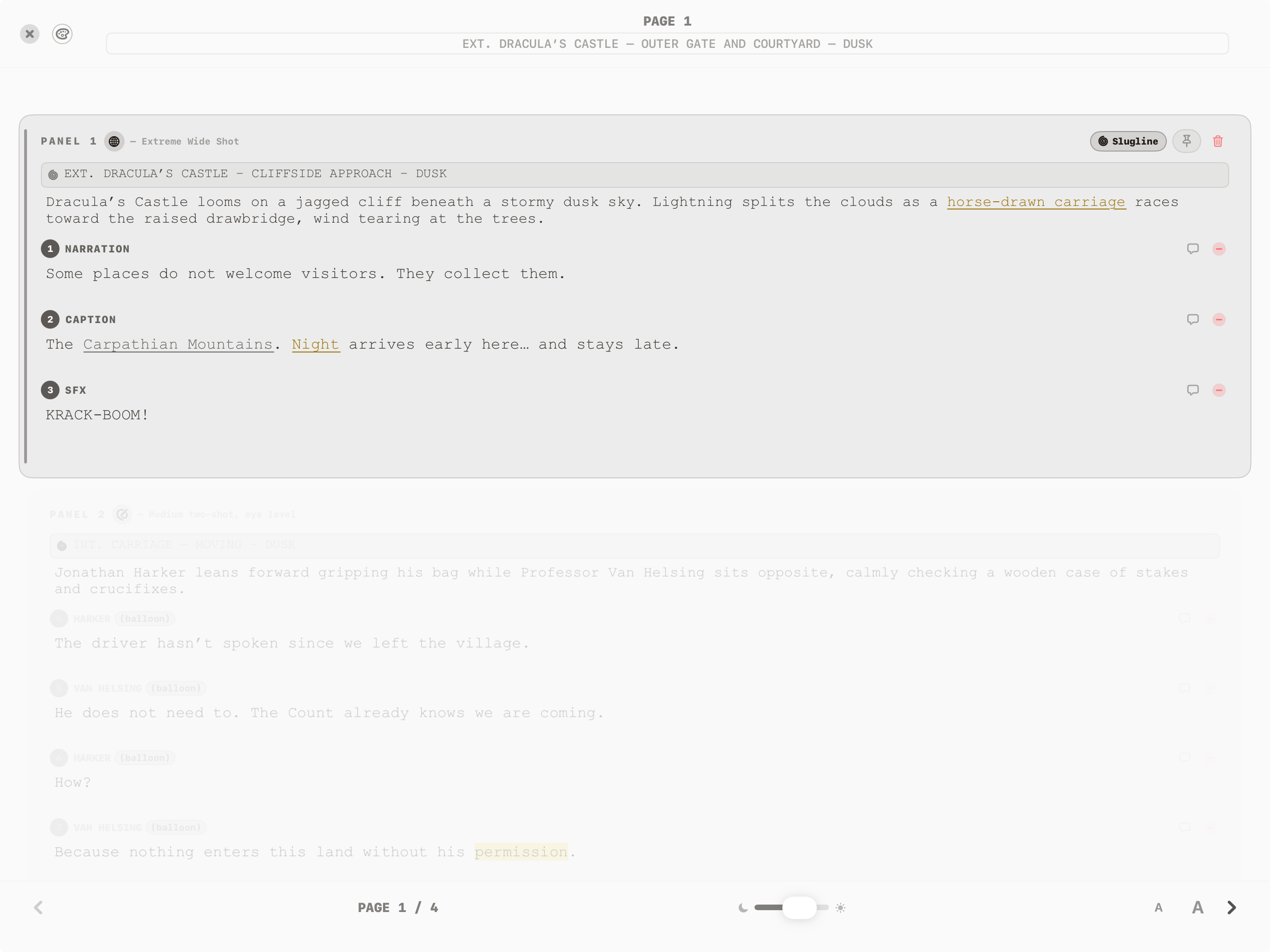
Keep it light and clear.
Choose a white appearance with the active panel emphasized. Adjust the brightness and text size while keeping your place in the script.
Exports
Take the story beyond your screen.
Choose the document that fits the handoff. Export scripts as Modern Script, Classic Script, Plain Text or Fountain, or save a native .frd project.
A script with a little more character.
Bring cover artwork and a title page into the Modern Script document. Colored elements and clear page and panel headings make the structure easy to follow.
1 / 3
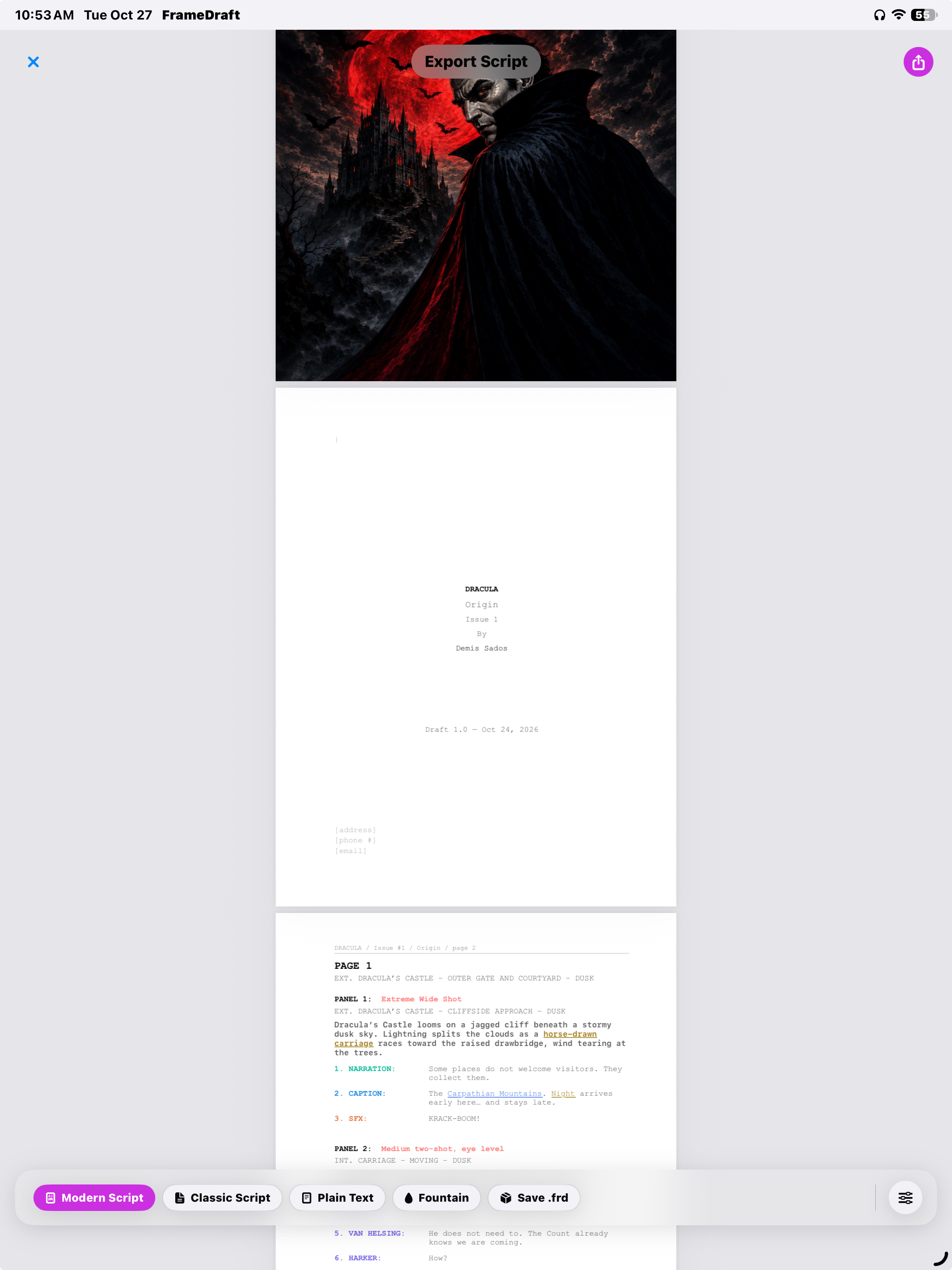
A script with a little more character.
Bring cover artwork and a title page into the Modern Script document. Colored elements and clear page and panel headings make the structure easy to follow.
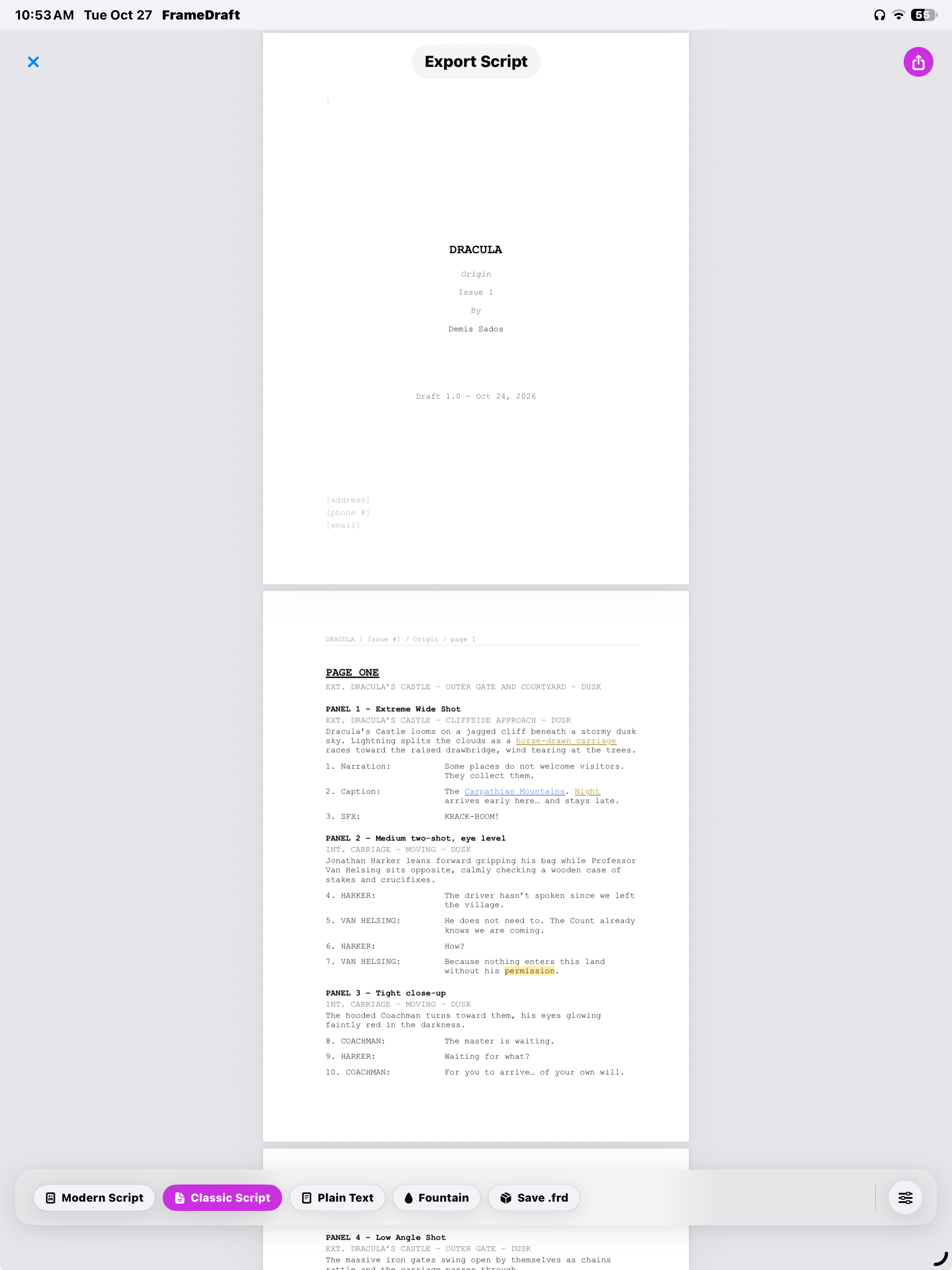
A familiar, restrained script layout.
Export a Classic Script with a title page, headers, numbered elements and a clean layout that puts the writing first.
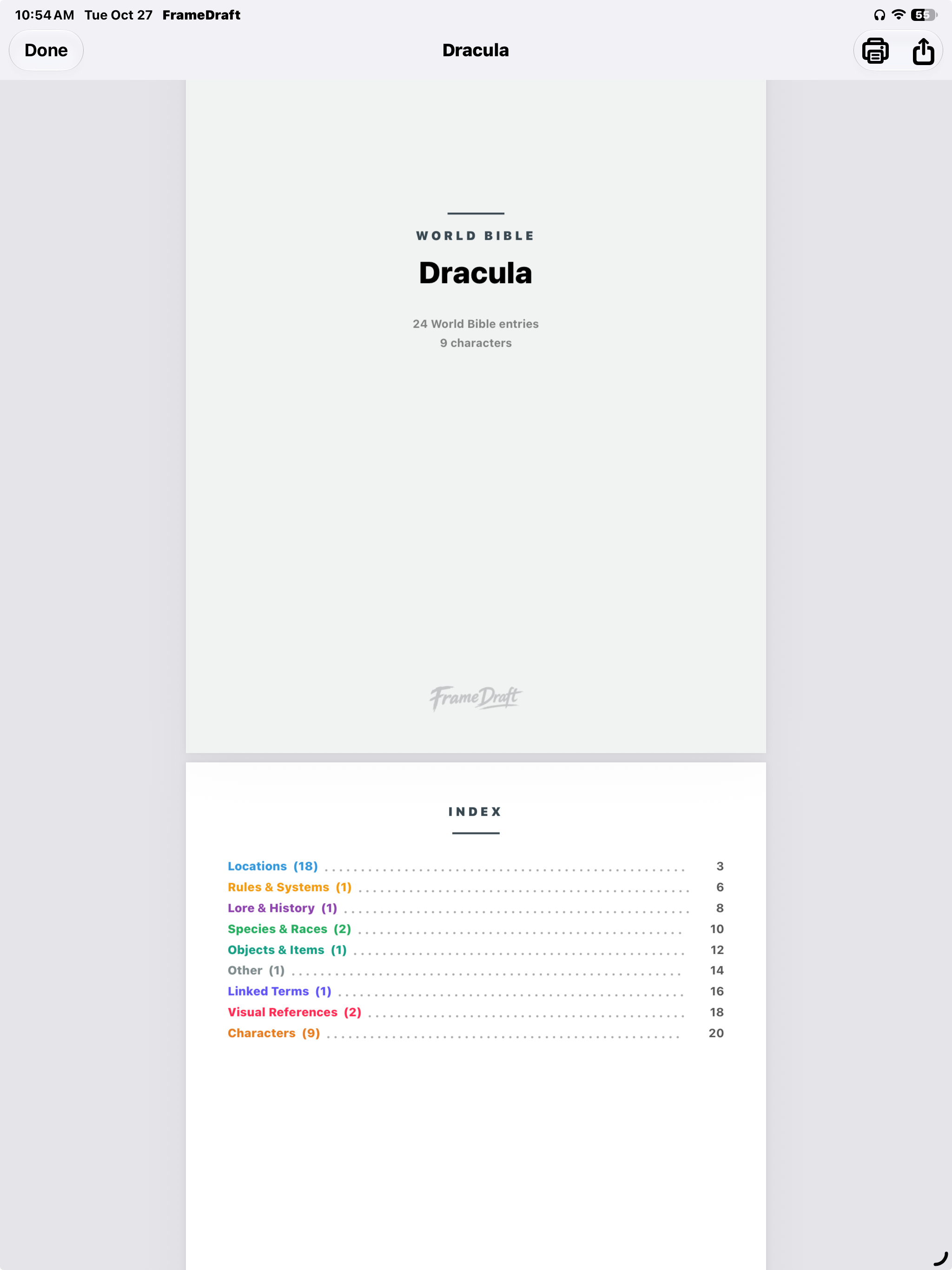
Share the world behind the story.
Export a World Bible document with a cover, entry and character totals, and a color-coded index with page numbers. Print it or share it alongside your script.
Find & Replace
Small changes. Across the script.
Rename a place or correct repeated wording without hunting through every panel.
Find the words you want to change.
Choose All Text, Characters, Locations or Notes, enter your find and replacement text, and work in Script scope. Case and Whole Word matching help narrow the search; Replace All applies the change across matches.
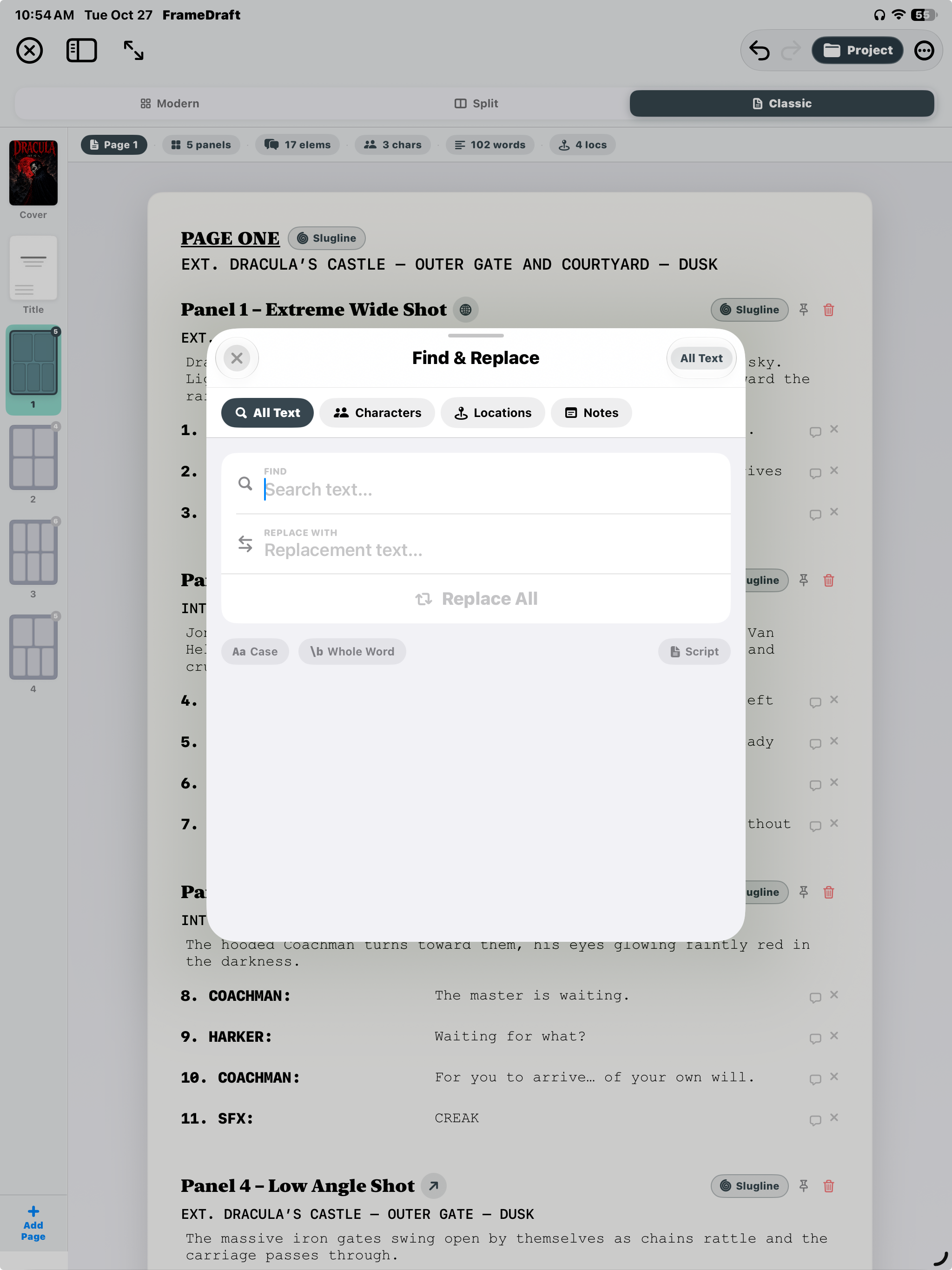
Find the words you want to change.
Choose All Text, Characters, Locations or Notes, enter your find and replacement text, and work in Script scope. Case and Whole Word matching help narrow the search; Replace All applies the change across matches.
Draft Capsule
Try another version of the story.
Keep named script drafts so revision does not have to mean letting go of an earlier idea.
A draft to return to.
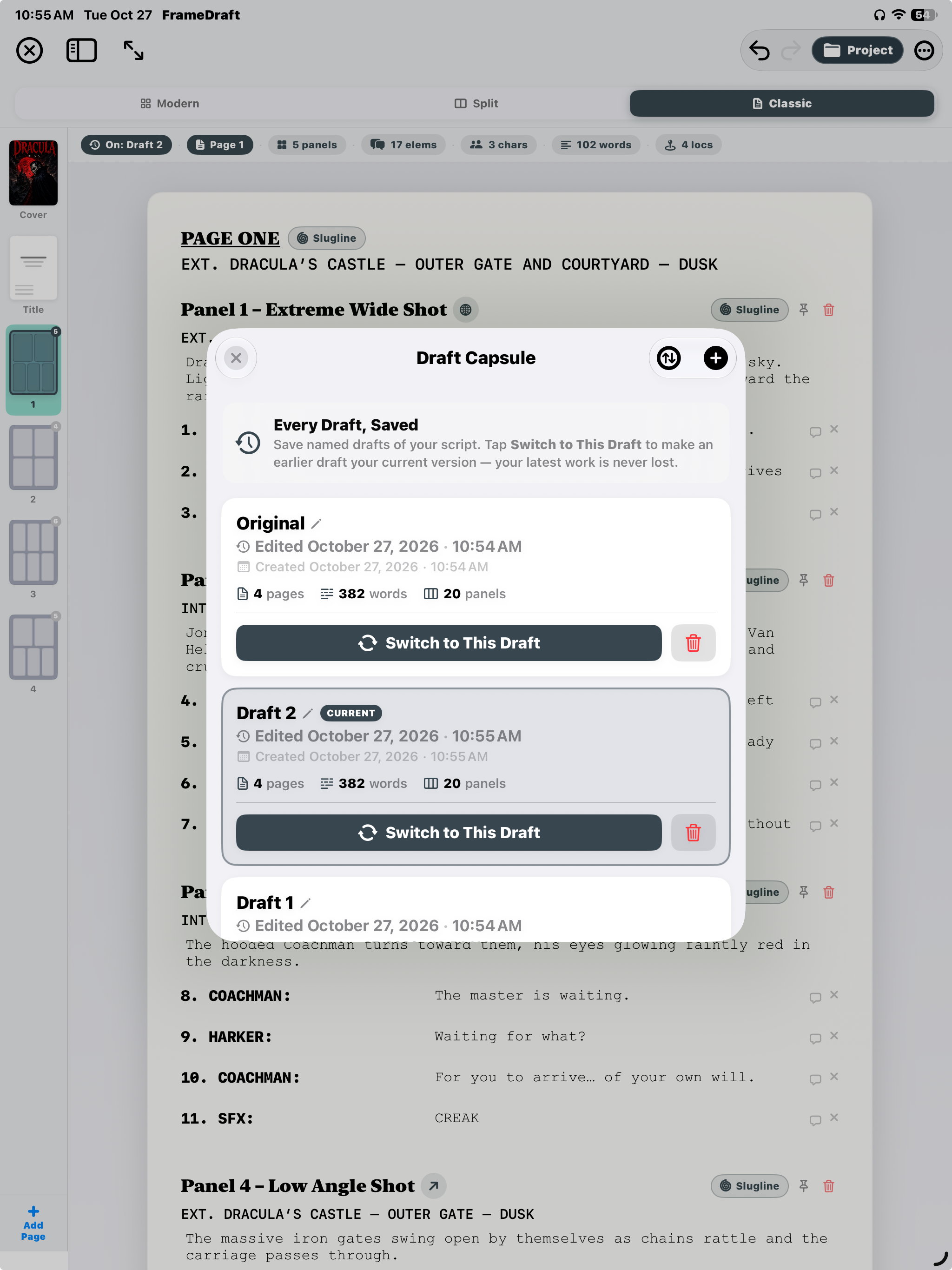
Save named drafts and switch an earlier one into the current version while preserving the other version. The CURRENT badge and editor draft indicator show which script you are working on.
Rename or delete saved drafts, review created and edited dates, and compare their page, word and panel counts.
A draft to return to.
Save named drafts and switch an earlier one into the current version while preserving the other version. The CURRENT badge and editor draft indicator show which script you are working on.
Rename or delete saved drafts, review created and edited dates, and compare their page, word and panel counts.
Reference & App Guide
A little guidance. Right where you write.
Learn a tool, check a detail and get back to your comic without leaving FrameDraft.
The tools, explained.
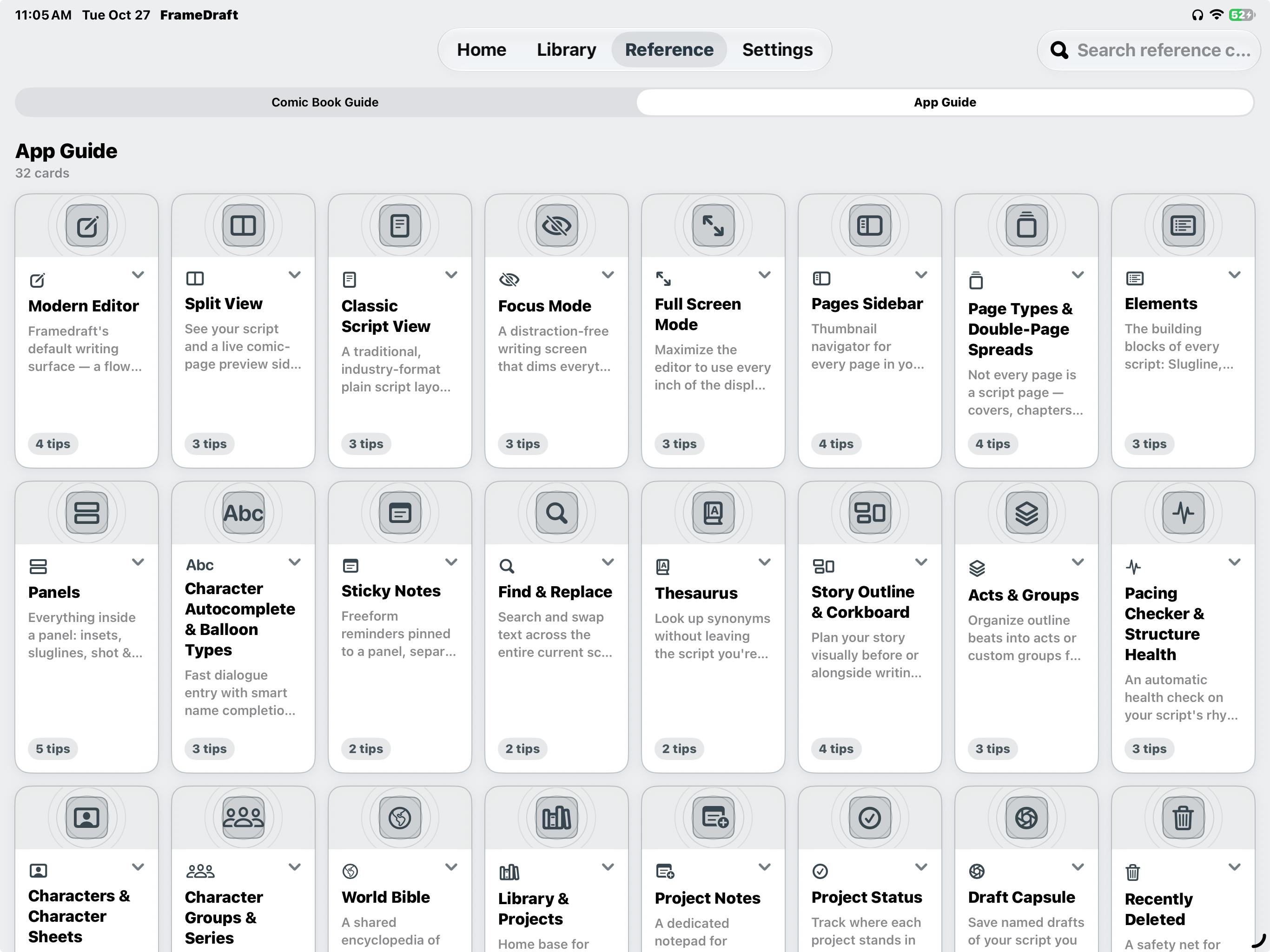
Search the App Guide’s topic cards or open the Comic Book Guide tab. Find reminders about editors, focus and fullscreen, pages and spreads, elements, panels, autocomplete, balloons, sticky notes and the thesaurus.
The guide also covers outlining, Acts & Groups, pacing and structure, characters, World Bible, the Library, Project Notes and Draft Capsule.
1 / 2
The tools, explained.
Search the App Guide’s topic cards or open the Comic Book Guide tab. Find reminders about editors, focus and fullscreen, pages and spreads, elements, panels, autocomplete, balloons, sticky notes and the thesaurus.
The guide also covers outlining, Acts & Groups, pacing and structure, characters, World Bible, the Library, Project Notes and Draft Capsule.
From a question to a clear answer.
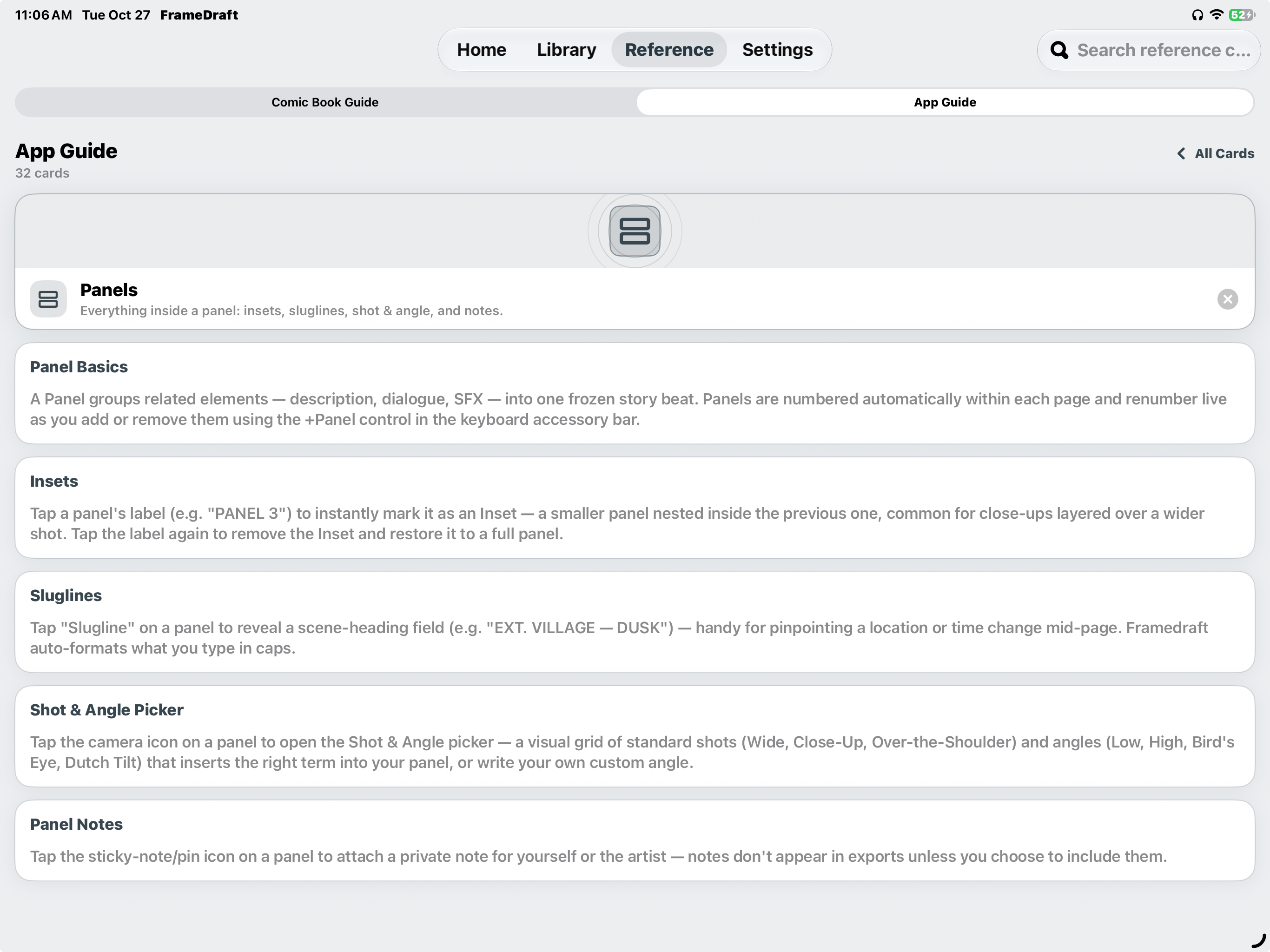
Open the Panels card to learn about automatic numbering, insets, sluglines and the shot-and-angle picker. Review how private panel notes work and the option to include them in exports.
A few useful answers
Good to know.
Who is FrameDraft for?
Aspiring comic creators, working comic and graphic novel writers, and anyone planning a multi-issue story. Whether you’re shaping a mini-comic or a longer series, it brings your outline, panel scripts, characters, and world notes together.
Can I draw comics or generate artwork in FrameDraft?
FrameDraft is a writing and planning tool, not a drawing app or an AI comic generator. Use it to develop the story and script behind your comic. You can bring in your own reference images and character portraits.
How do I keep projects in sync?
Enable iCloud sync in FrameDraft’s Settings to sync your projects through your personal iCloud account on iPhone and iPad. Your devices need to use the same iCloud account.
Can I export my writing?
Yes. Choose Modern Script, Classic Script, Plain Text, or Fountain from Export Script. FrameDraft also supports PDF export for scripts, character sheets, and World Bible documents, Fountain import, and project packages for handoff or backup. Some features require Pro; check the in-app options for current access.
Is FrameDraft free?
FrameDraft is free to download. You can create one comic with up to three pages for free—there is no timed trial. Optional auto-renewing Pro subscriptions are $3.99 per month or $34.99 per year in the US. Prices may vary by region; check the in-app subscription screen for current pricing and feature access. Subscriptions are managed through your Apple Account.
Your next story starts here
Pricing
Create one comic with up to three pages for free.
When you’re ready for Pro, choose monthly or yearly.
Monthly
FrameDraft Pro
Billed monthly.
Yearly
Save 27%FrameDraft Pro
Billed yearly.
Prices shown in US dollars. Prices may vary by region. Yearly savings compared with 12 monthly payments.
Download FrameDraft for free
One app for your Mac, iPhone, and iPad.

Optional Pro subscriptions renew automatically unless canceled. Manage or cancel in your Apple Account. The free comic allowance is not a timed trial.